November 2024 Newsletter
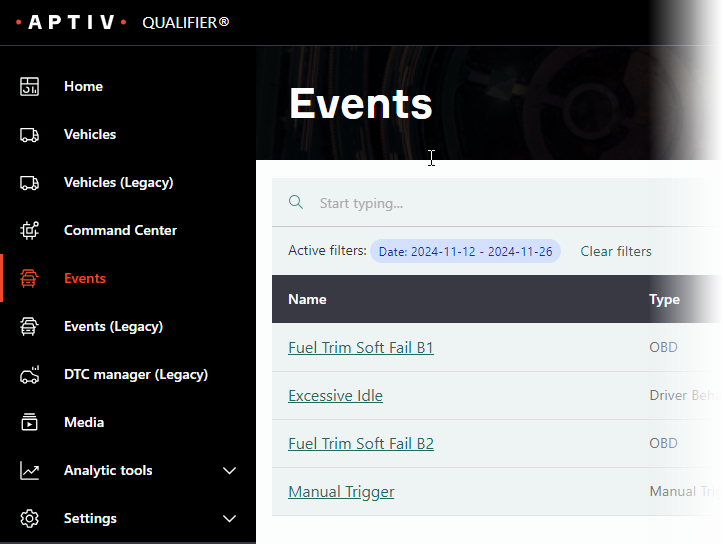
New Events page for Next-Gen
The Next-Gen Qualifier interface continues to improve. We recently rolled out a redesigned Events page, which you can access by clicking Events in the left navigation. It offers more intuitive issue tracking, easier navigation for event occurrences by vehicle, and a new omnisearch tool. Check it out for yourself the next time you open the Qualifier web application or see the Qualifier User Guide for a detailed description.
Please provide your feedback!
When you log in to the Qualifier web application in December, you may see a notice asking you to complete a short survey. We would really appreciate it if you could answer a few questions. This annual survey only takes a few minutes and helps us improve Qualifier to better meet your needs.
Visit Movimento at the Auto Show
If you're planning to attend the Detroit Auto Show in January, look for our reflash group, Movimento. We'll be part of the AutoMobili-D exhibits in the Huntington Place Ballroom during Industry Days, January 15-16. We'd love to chat with you about how Movimento Reflash services can help engineering teams become more productive and efficient.

Huntington Place
January 10-20, 2025
Doing more with less
We've recently heard from many customers that their engineering teams are being asked to do more with fewer resources. If your team is going through cost cutting or layoffs, we can help. Many teams don't fully use all the Qualifier functionality that they are already paying for, and we can help you make the most of your investment. If your team is looking for ways to become more productive, contact your Aptiv representative or email us at qualifier@aptivcs.com. We will listen to your current challenges and share some best practices.
Pro tip: Set up thresholds in AC-Graph
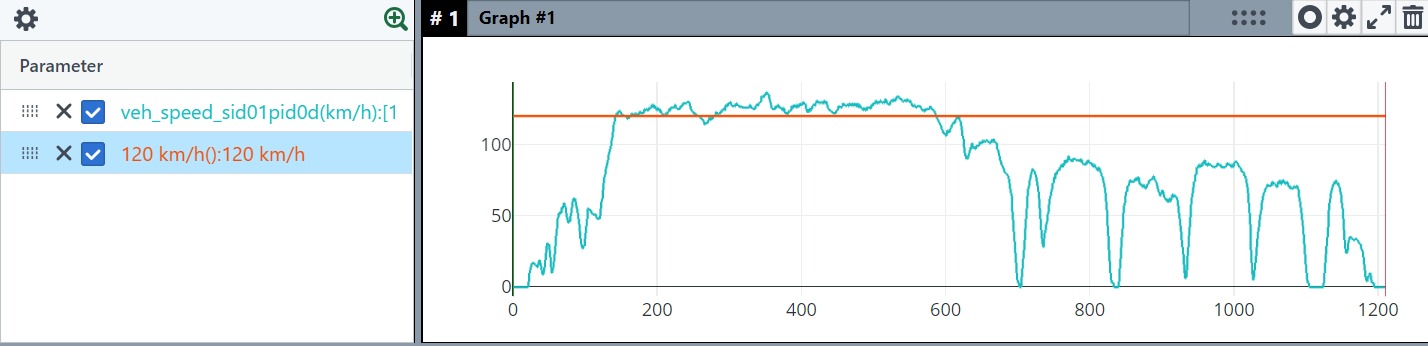
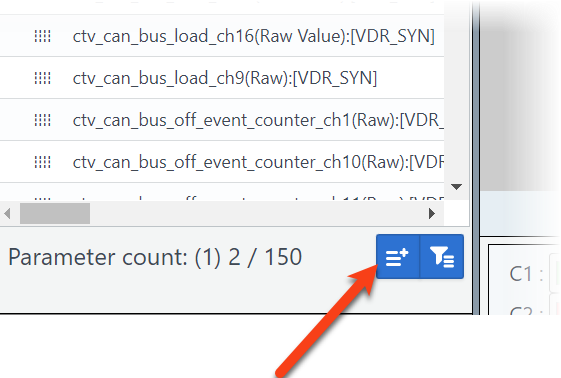
If you are looking at a graph, it can be helpful to have a threshold line to show when a parameter goes over or under a specified limit. To set up a threshold in AC-Graph, click the custom parameter icon (pictured right). Give your threshold a name and a value before clicking Save. Your new threshold will appear in the parameter list, and you can drag it to any graph. You can find more detailed instructions in the Help Center.

Your Aptiv team is here to help
Questions? Contact your Aptiv representative or email qualifier@aptivcs.com.
Aptiv Connected Services
5725 Innovation Drive, Troy, MI 48908