Vehicles
Vehicles organizes fleet data by vehicle identification number (VIN). Begin here when you know which vehicle you need, then open its trips, CAN logs, events, diagnostic trouble codes (DTCs), modules, or individual recordings from one detail view.
For investigations that begin with a condition or diagnostic code instead, use Events or DTC Manager.
Qualifier applies a date filter as soon as this page opens, covering roughly the last two weeks. The exact range depends on your organization.
If the page looks emptier than you expected, this is almost always why. Widen Min Date rather than assuming the data is missing. See Set the date range.
Keep some date filter on wherever you can. These tables build up a lot of history, and removing the filter entirely to see everything at once makes the page slow and hard to work with.
The vehicle table
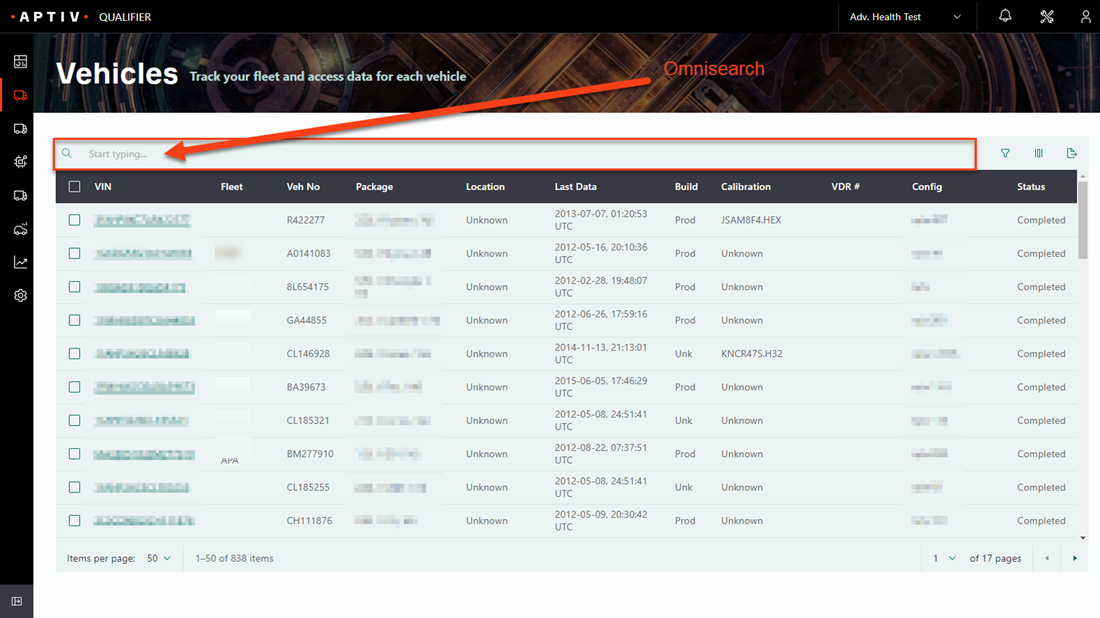
Browse by VIN, or start typing in the omnisearch bar to narrow the table as you type. Omnisearch matches VIN, fleet, vehicle number, package, location, build, calibration, and vehicle data recorder (VDR) number.
Which columns appear depends on how your organization is set up.
Toolbar actions
| Action | What it does |
|---|---|
| Filter | Opens the filter panel |
| Customize columns | Choose which columns show, and drag the six-dot handle to reorder them |
| Export | Downloads the visible vehicle data as a CSV file |
| Add new Vehicle | Adds a vehicle to Qualifier |
Filtering
Click the filter icon to open the panel. You can set Min Date and Max Date, and filter by vehicle, fleet, build, package, and test status.
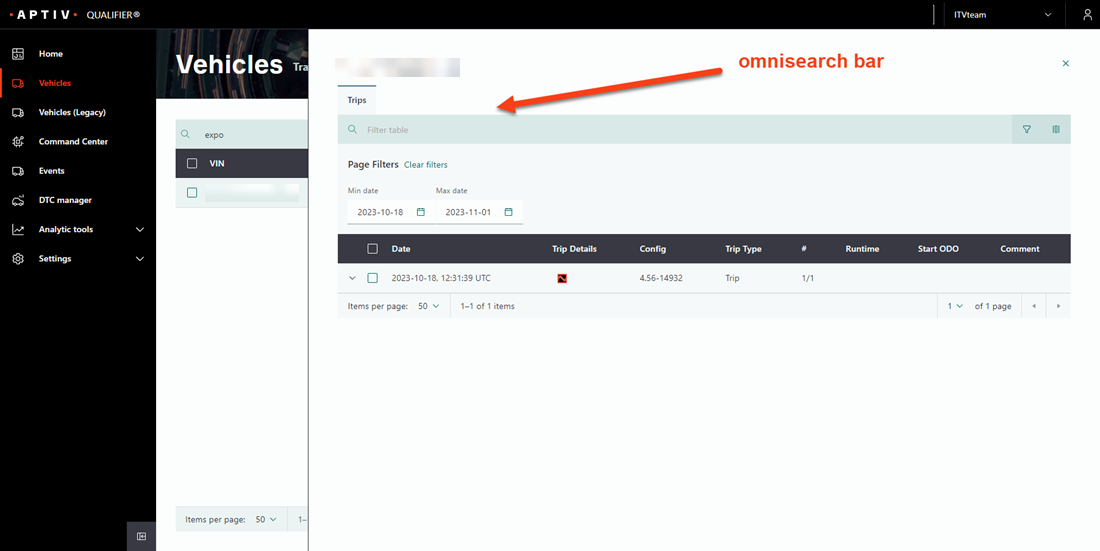
Active filters appear as chips below the omnisearch bar. Click Clear filters to remove them all.
See Use global filter profiles to apply a filter across every page at once instead.
Opening a vehicle
Click a VIN to open its detail drawer.
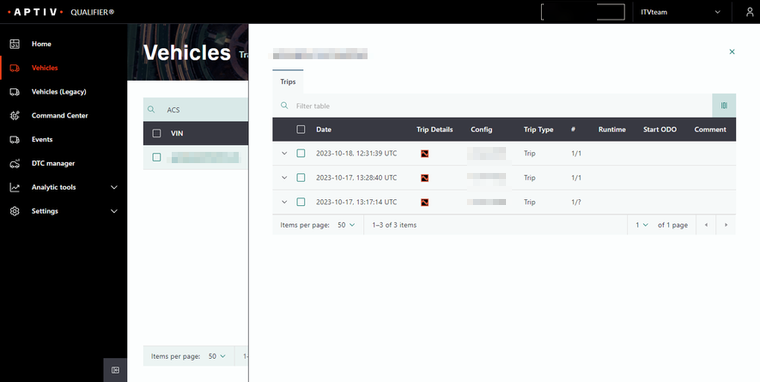
The drawer opens on Trips and carries a tab for each kind of file the vehicle produced. Most vehicles show Trips, CAN Logs, Events, DTCs, and Modules. Some organizations have additional tabs.
Each tab has its own omnisearch bar.
Trips
The AC-Graph icon in the Trip Details column opens that trip in AC-Graph.
Where a trip covers more than one trip detail file, shown by the number in the # column, AC-Graph opens in multi-file mode. Choose the concatenate option there to see all the detail files as one continuous time series.
You may be asked to sign in again when AC-Graph opens. That is expected.
Trip detail files
Click the chevron at the left of a trip row to expand it and see the individual trip detail files.
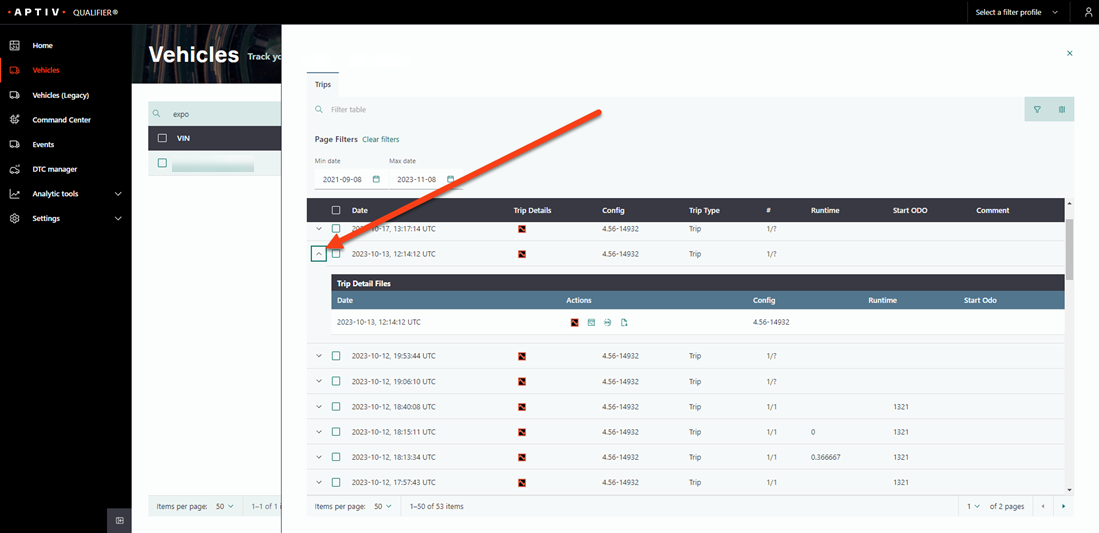
The Actions column on a detail row offers:
| Action | Result |
|---|---|
| AC-Graph | Opens the file in AC-Graph |
| CSV | Downloads trip details as a CSV file |
| MDF | Downloads trip details as an MDF file |
| RAW | Downloads trip details as a RAW file |
RAW downloads appear only for users with elevated permissions.
Properties
Vehicles > Properties is the same fleet, viewed with more columns. It carries the detail that does not fit on the main table, such as engine, body, transmission, model year, build, test group, and testing distance.
Your organization sets which columns appear here, so your view may differ from a colleague's in another division. Use this page when you want a more granular view of vehicle details than the Vehicles table gives you.
Properties is read-only.