Events
Events organizes triggered recordings across the fleet by the condition that caused them. Use the page to see how widely an issue occurred, compare affected packages and vehicles, and open an individual datalog for analysis.
A typical event file captures 60 seconds of data from before the trigger and 10 seconds from after it, though that window is configurable.
Because the page starts with the event rather than the vehicle identification number (VIN), one condition can be followed across many vehicles. To investigate everything recorded by one vehicle, start from Vehicles instead.
Events, issues, and occurrences
Qualifier groups triggered data at three related levels: events, issues, and occurrences. Understanding the distinction makes the Events page, its status controls, and its assignment behavior easier to follow.
In everyday use, event file and event occurrence refer to the same individual capture.
What an event is
An event is a predefined condition Qualifier recognizes, such as excessive idle, high engine rpm, a fuel trim soft fail, or a manual trigger.
Which conditions count as events for your fleet is decided by Aptiv customer support engineers (CSEs) working with your engineers.
Events are grouped by type. Common types include on-board diagnostics (OBD), driver behavior, engine, start, and manual trigger.
The three levels
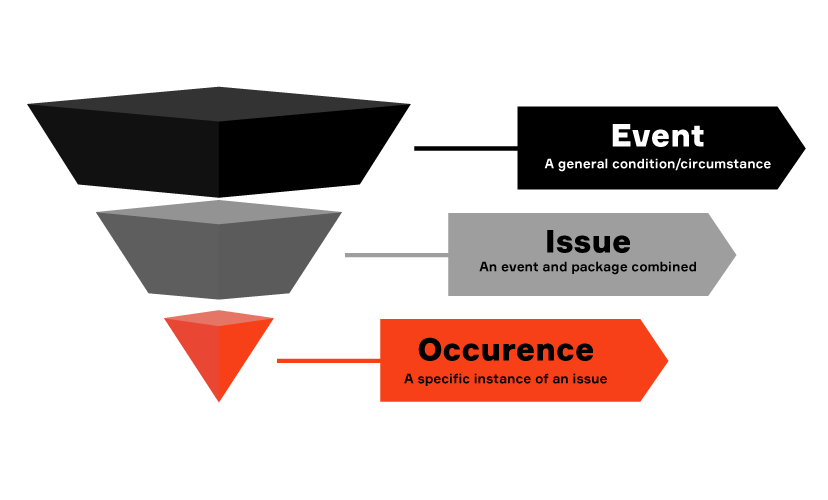
| Level | What it is |
|---|---|
| Event | The general condition. Excessive idle, excessive speed, manual trigger |
| Event issue | That event combined with a specific package. The same event across two packages is two issues |
| Event occurrence | One real instance, recorded as one data file |
Reading it from the bottom up: an occurrence is a single thing that happened to a single vehicle at a single moment. An issue collects every occurrence that shares an event and a package. An event is the condition itself, independent of any vehicle.
This is why the Events page shows the same event name more than once. Each row is a different package.
Status
Issues and occurrences both carry a status, and they move independently. Changing the status at issue level applies it to every occurrence underneath, so use it deliberately.
See Filter by status.
Qualifier applies a date filter as soon as this page opens, covering roughly the last two weeks. The exact range depends on your organization.
If the page looks emptier than you expected, this is almost always why. Widen Min Date rather than assuming the data is missing. See Set the date range.
Keep some date filter on wherever you can. These tables build up a lot of history, and removing the filter entirely to see everything at once makes the page slow and hard to work with.
The events table
Click Events in the left navigation.
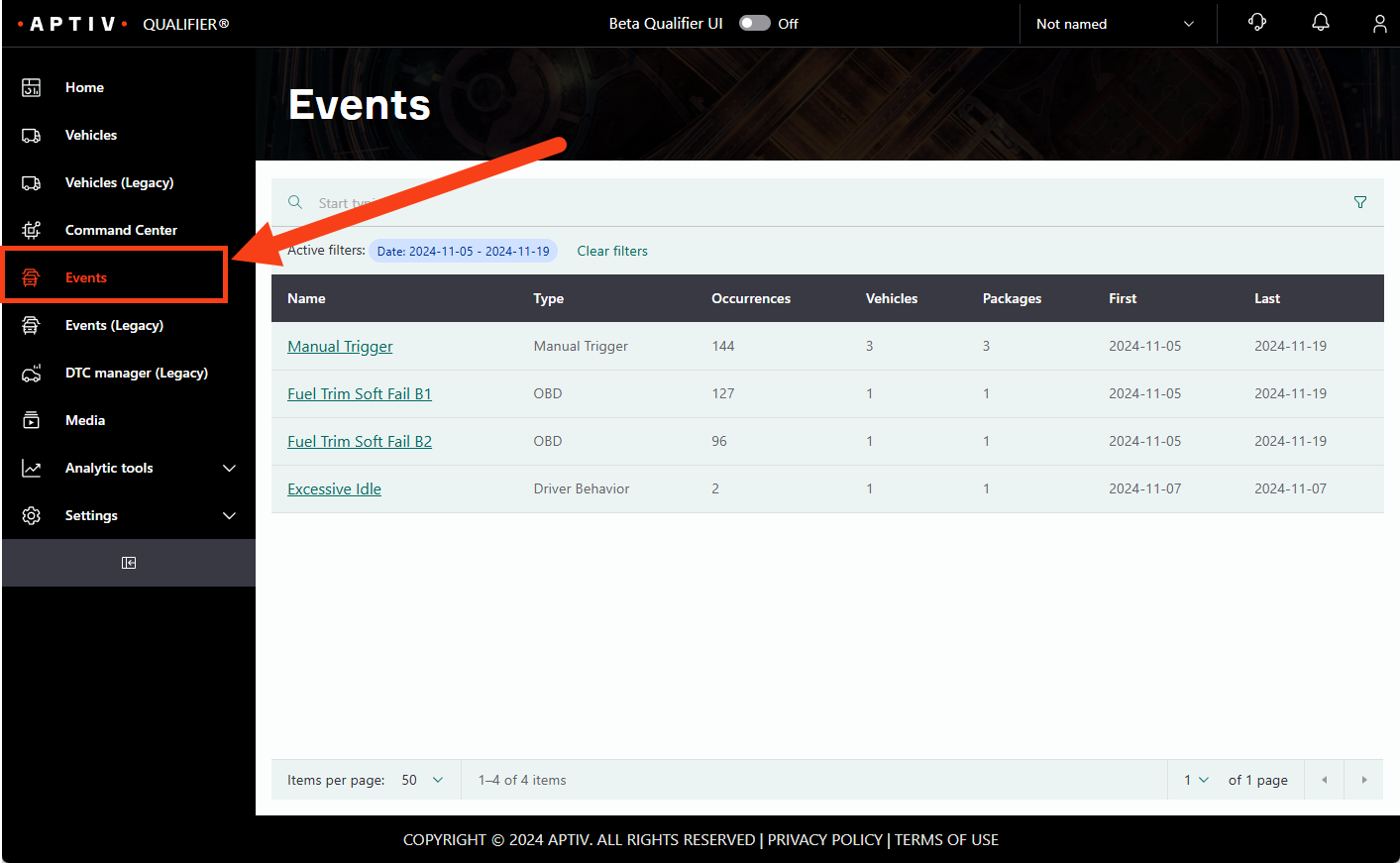
The table lists issues within your current filters, with the number of occurrences and affected vehicles, the packages involved, and the dates of the first and most recent occurrence.
Filtering
There are two ways to narrow the list.
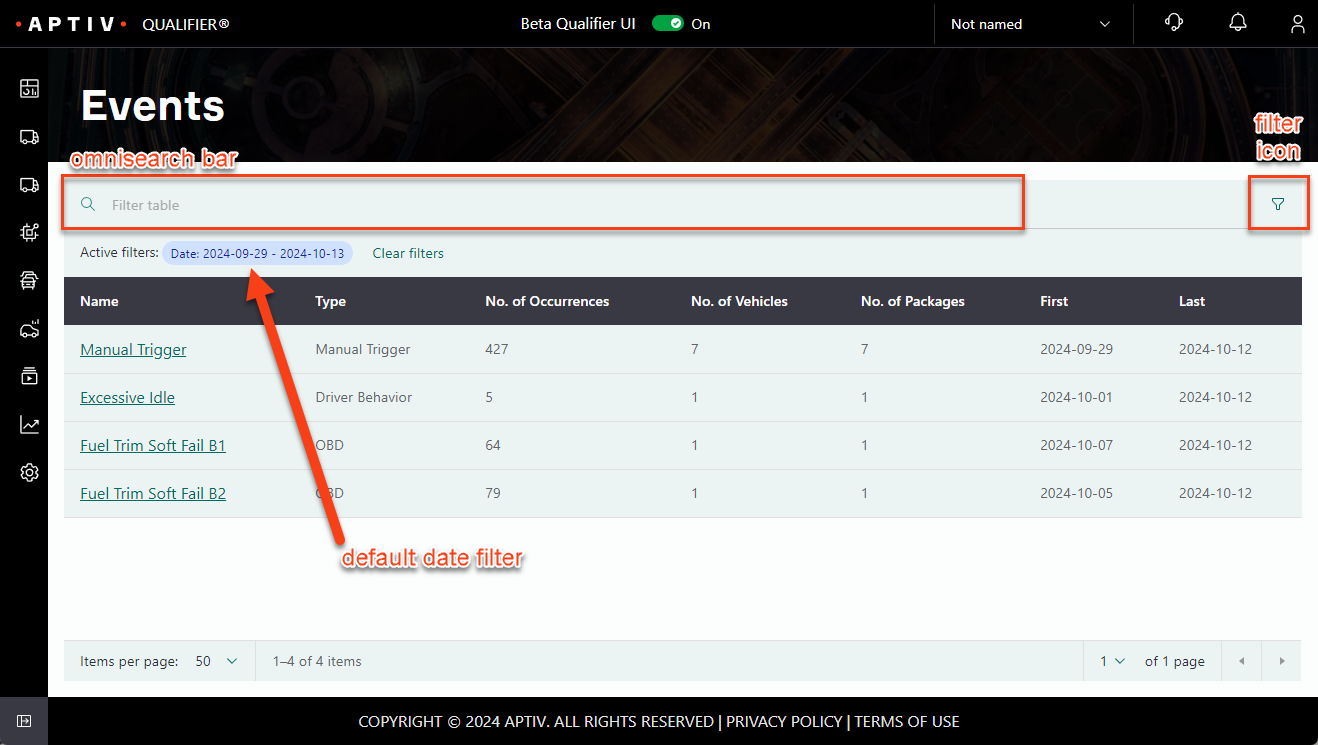
Omnisearch. Start typing a name or type and results narrow as you type.
The filter icon. Opens a panel offering Min Date, Max Date, Event Status, Packages, Occurrence Status, and Fleet. Click Apply when you are done.
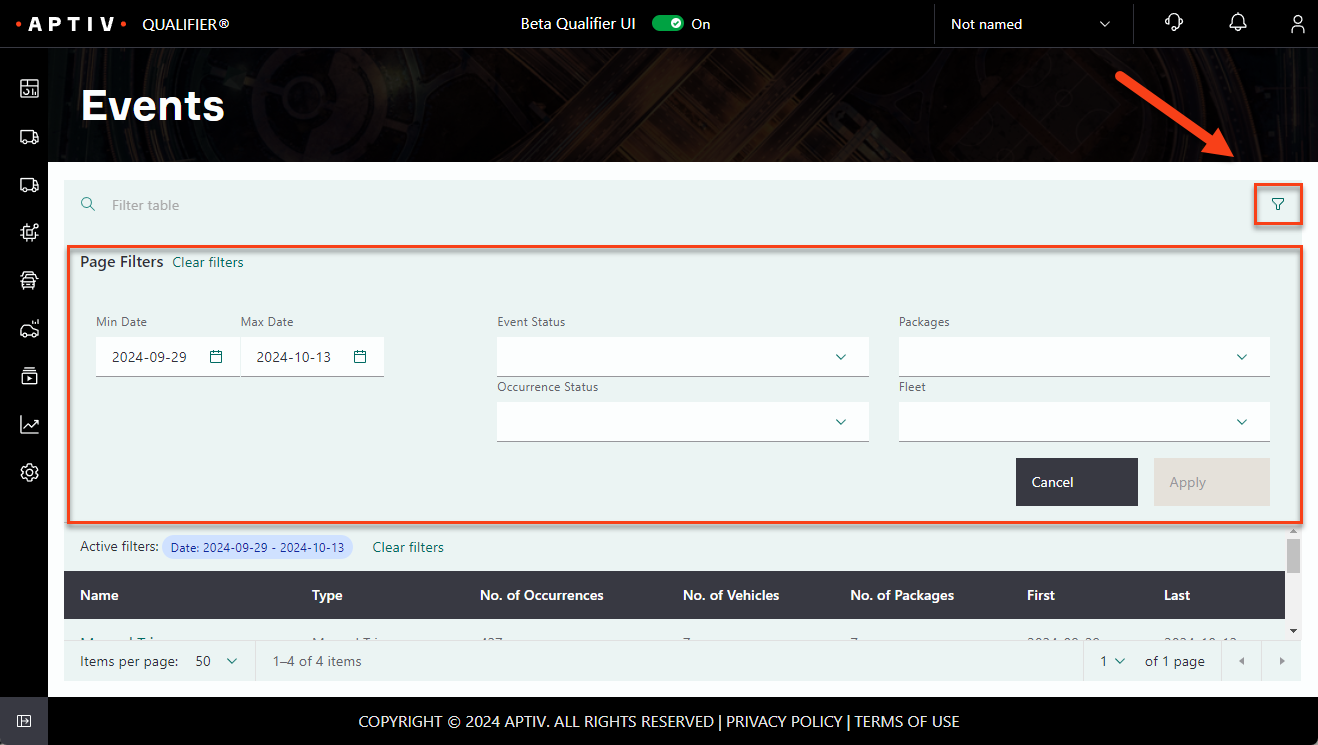
Omnisearch still works while the filter panel is open. Active filters appear as chips below the search bar, and Clear Filters removes them all.
Opening an issue
Click an issue to open it. It opens on the Packages tab.
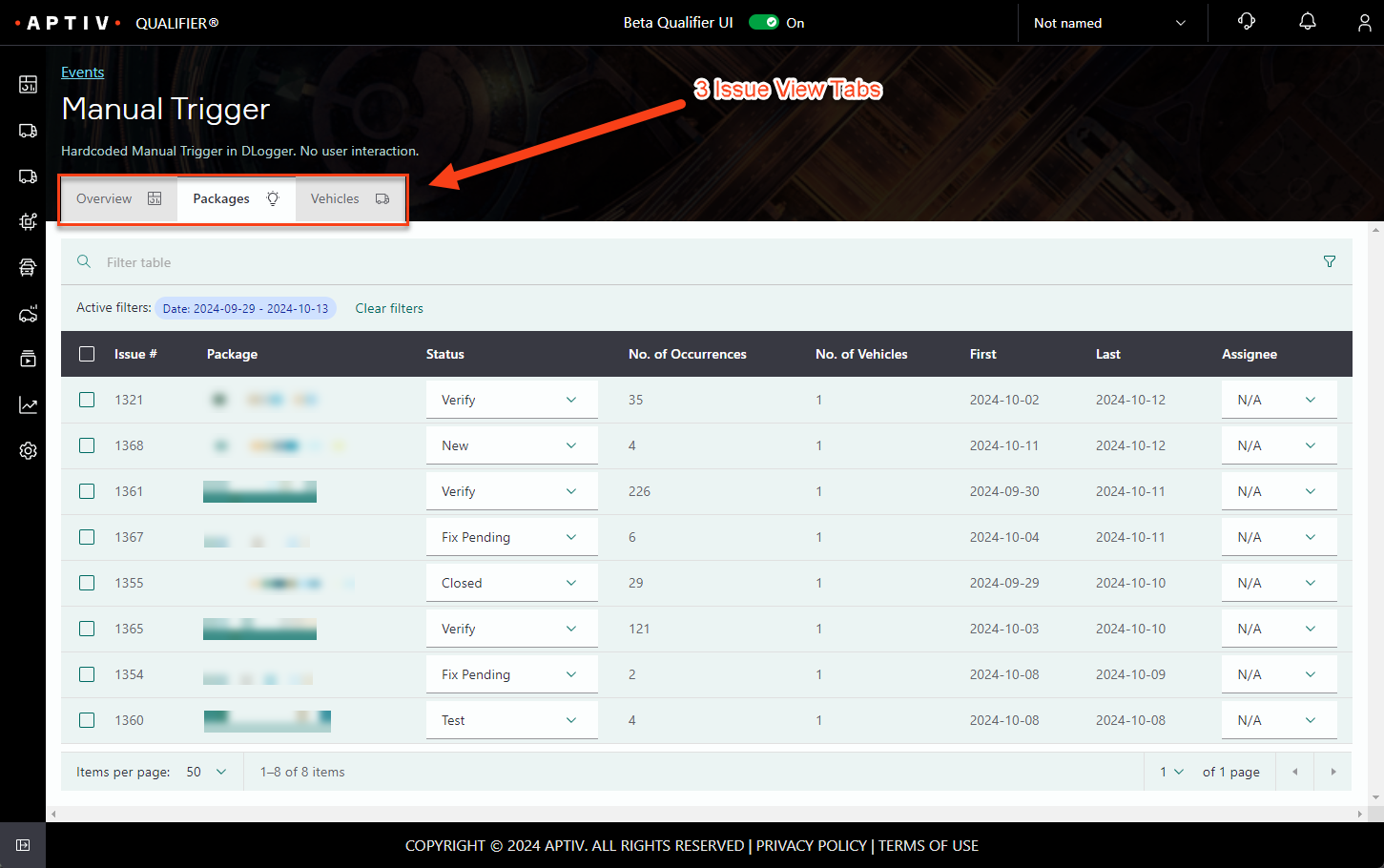
Every tab filters the same way the main table does, and inherits the same default date range.
Packages tab
Lists the issue by package, with the occurrence count, the number of vehicles, and the first and last dates.
The last column assigns the issue to a Qualifier user. Assigning someone sends them an email.
Click a package to see its occurrences.
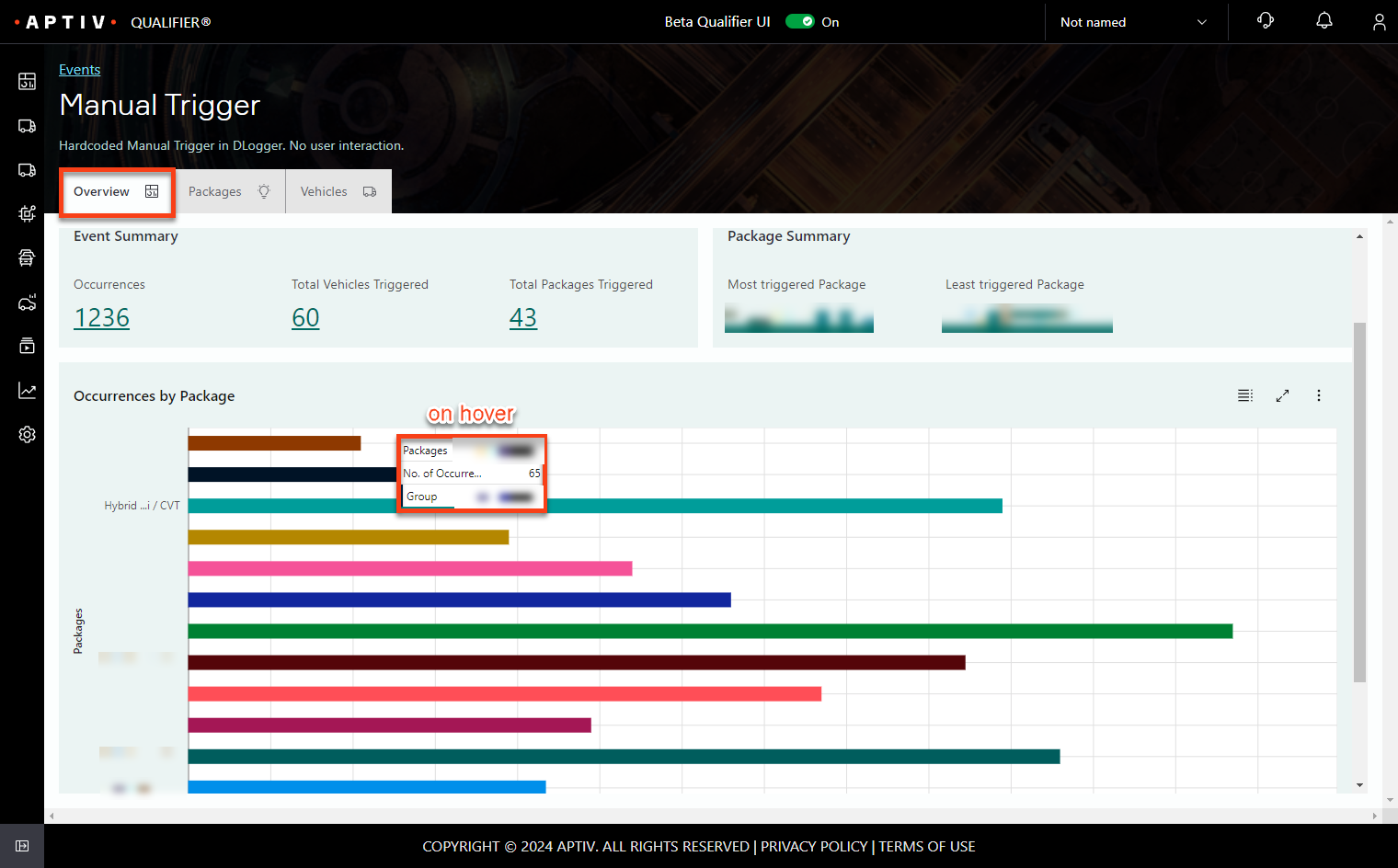
Overview tab
Gives an Event Summary and a Package Summary, then charts occurrences per package. Hover a bar for the detail behind it.
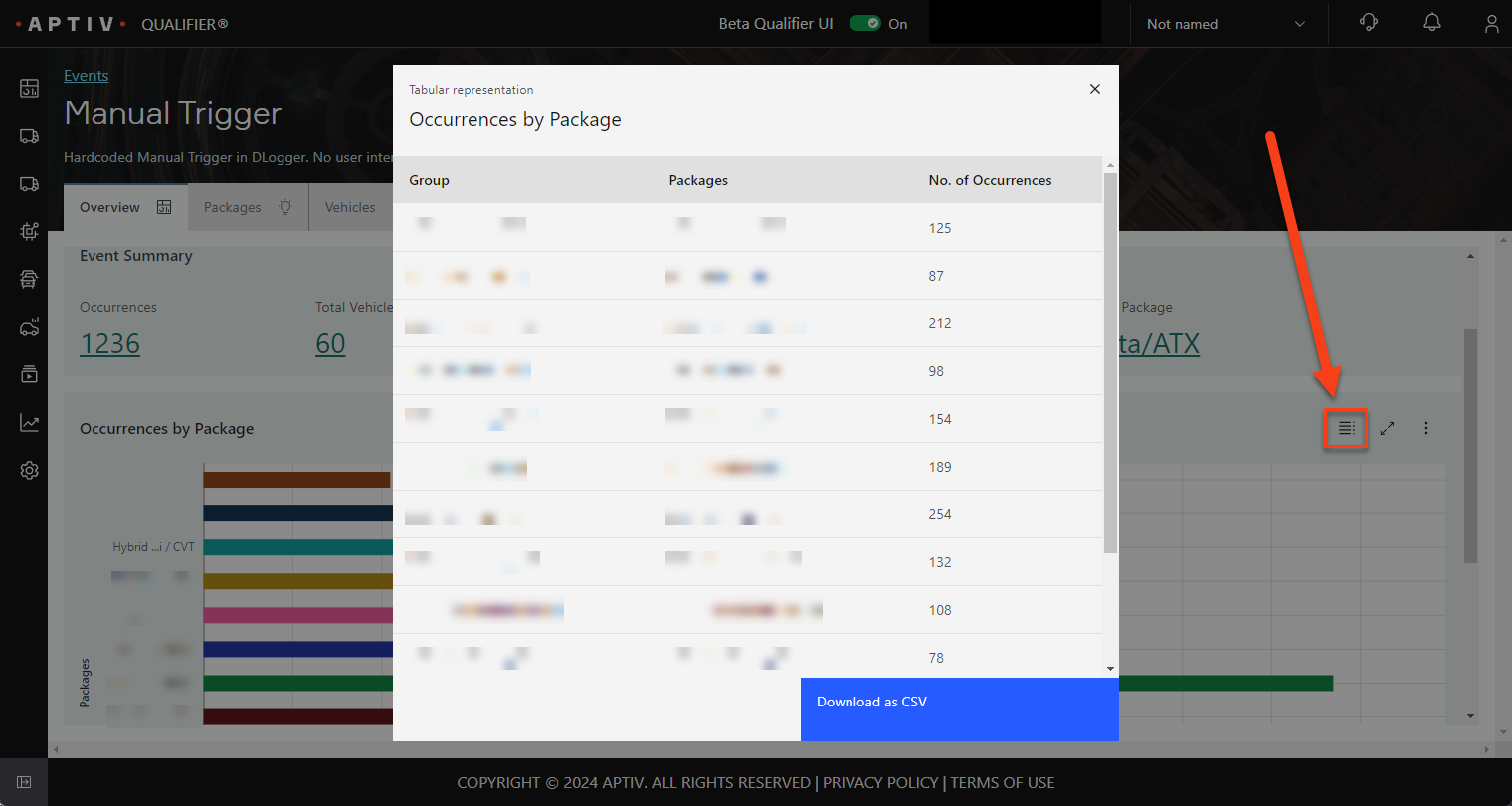
To read the chart as a table instead, click the table icon at the top right. The pop-up that opens also offers Download as CSV.
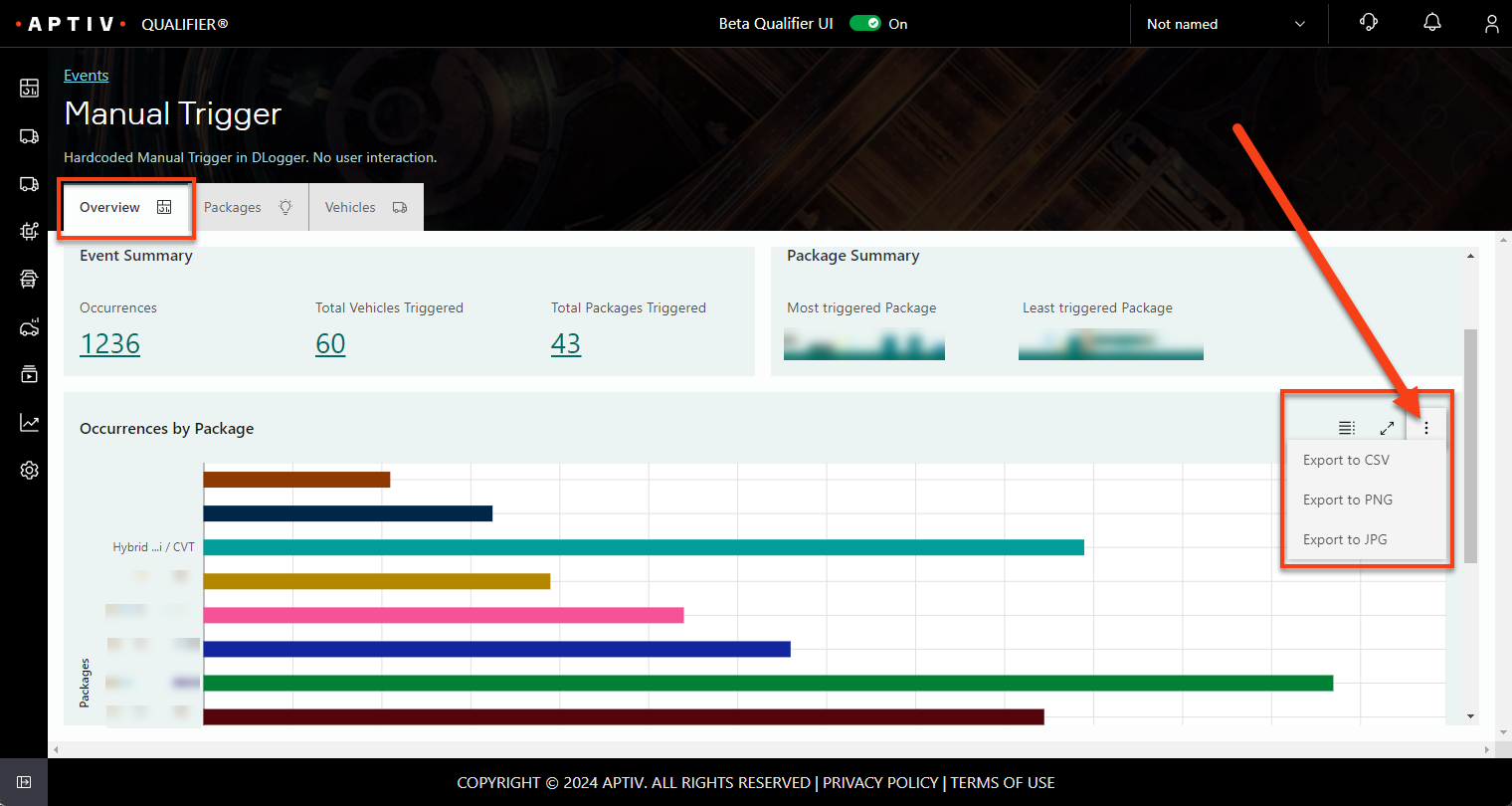
To export the chart itself, click the three-dot icon at the top right and choose CSV, PNG, or JPG.
Vehicles tab
Summarizes occurrences by VIN, with the packages and fleets involved and the first and last dates.
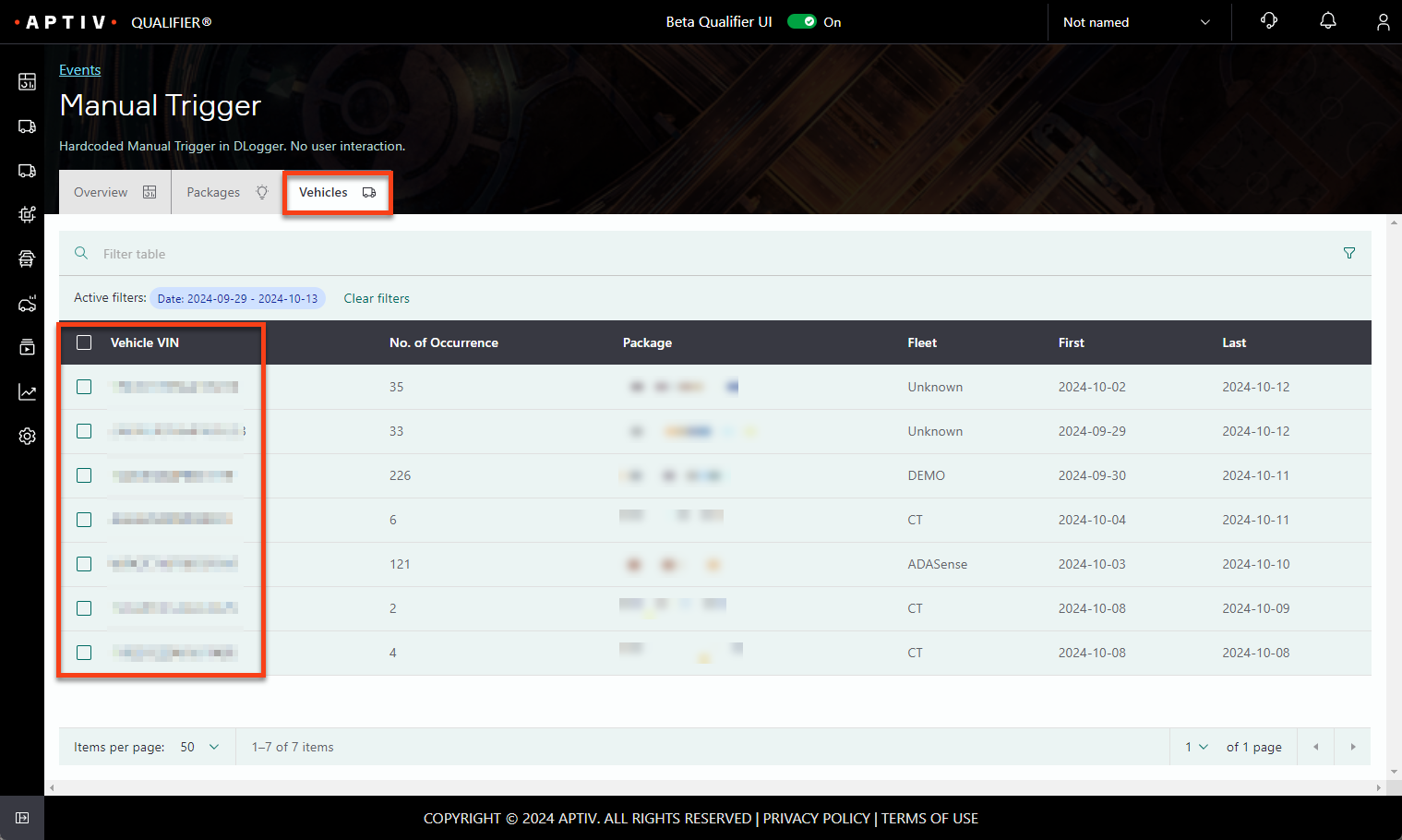
Working with occurrences
Clicking a package opens the list of individual occurrences. From here you can change an occurrence's status, reassign it, watch any video attached to it, or open it in AC-Graph.
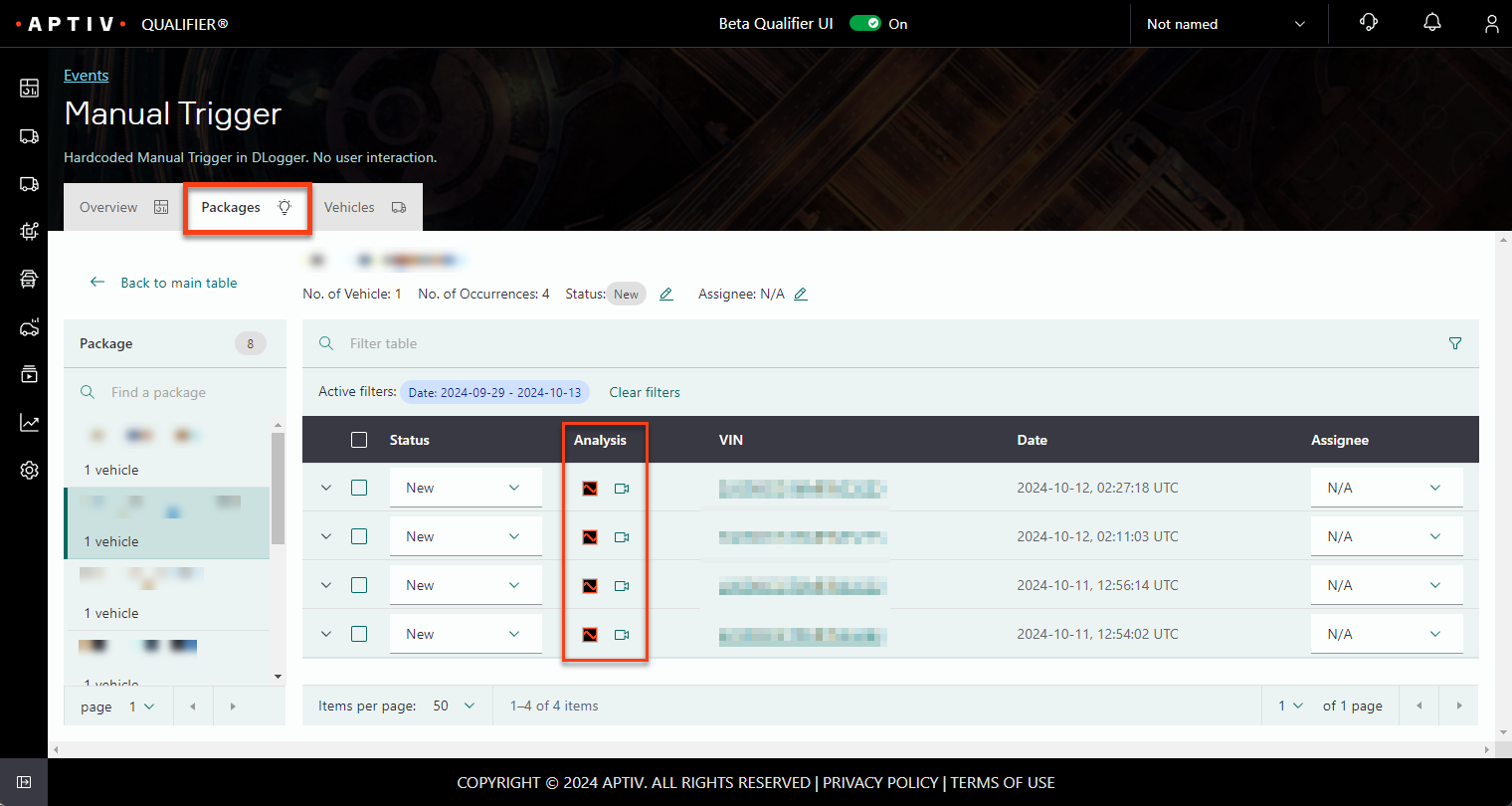
The Analysis column holds the AC-Graph icon and, where video exists, a video icon.
For every route into an occurrence file, see Open event files in AC-Graph.
Common questions
What counts as an event? A datalog captured because a trigger fired, for example engine speed above 6500 rpm. Your triggers are defined by your organization together with the Aptiv CSE team.
What is a manual trigger? An event captured because the driver pressed the physical trigger button in the vehicle.
How do I find an event from a particular day? Set Min Date and Max Date to bracket the day. If you already know which vehicle it came from, go to Vehicles instead, open the VIN, and work down the list of captures by date.