Analytics
Analytics provides interactive reports designed for your organization's programs and questions. Aptiv customer support engineers (CSEs) work with your team to define them, so the available report list varies by organization.
Analytics is an optional add-on. If you do not see it under Analytic tools, your organization has not purchased it.
Open Analytic tools > Analytics in the left navigation.
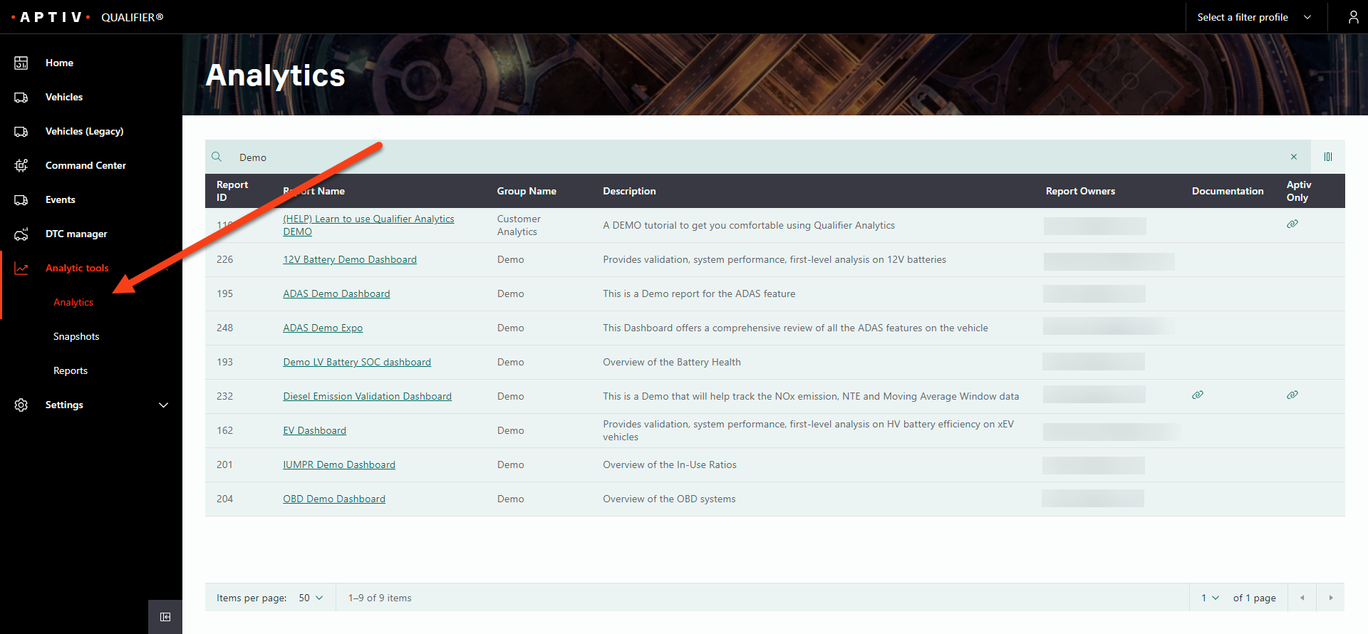
Opening a report
Click a report name to load it.
To switch to a different report, click Load New Report. Use that rather than your browser's back button: back takes you to whatever page you were on before Analytics, not to the report list.
Finding a report
Type in the search box. Qualifier searches every column in the table.
Where the list runs to several pages, the bar at the bottom lets you change how many rows appear per page and move between pages.
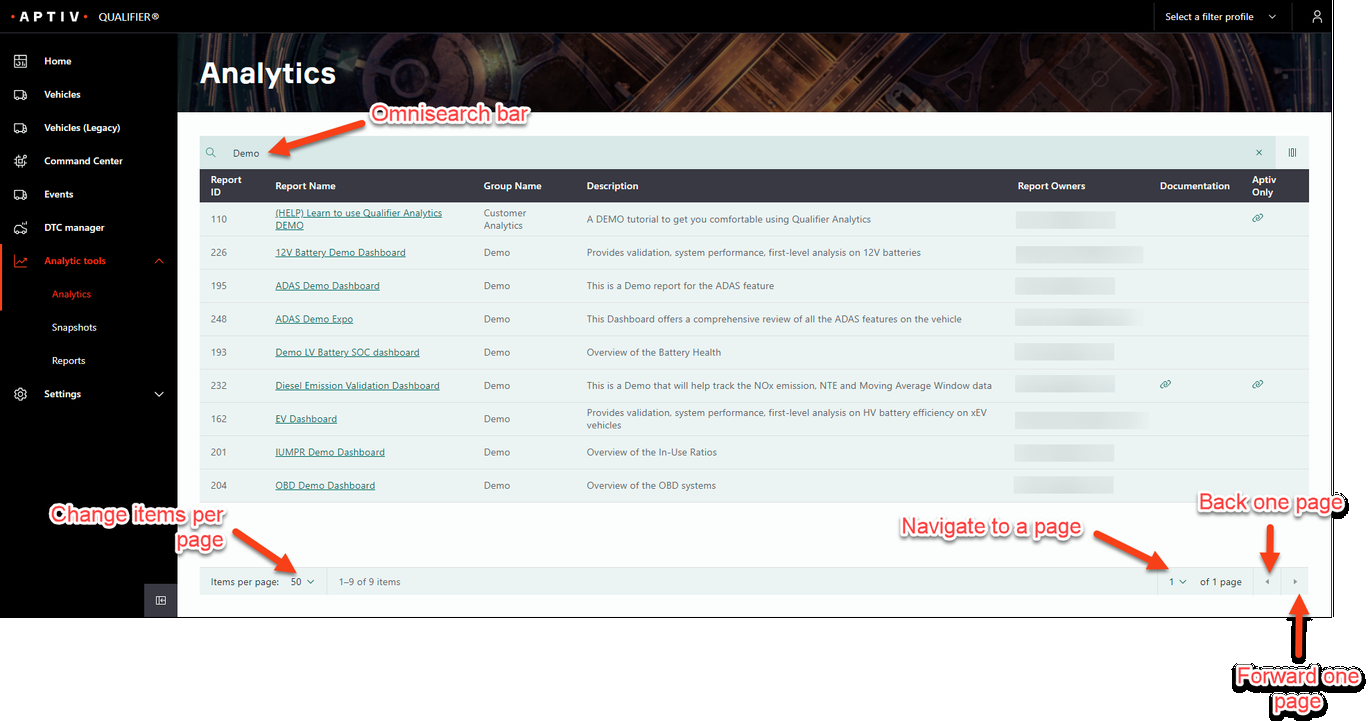
What the columns mean
| Column | Description |
|---|---|
| Report ID | A unique number, assigned in the order reports were added. Quote it when you contact Aptiv about a report |
| Report Name | Unique within your organization |
| Group Name | Your grouping, agreed with your CSE, to keep related reports together |
| Description | What data the report covers |
| Report Owners | Who built and maintains it. Add them as watchers on any support ticket about it |
| Documentation | A link to more detail, where it exists |
Click the column customization icon at the top right to choose which columns appear and in what order.
Getting a new report, or changing one
Reports are built for you rather than by you. To request a new one, change an existing one, or ask a question about what a report contains, raise a support desk ticket. See Submit a support ticket.
Include the report owners listed against the report as watchers on the ticket.