Navigating Qualifier
The first two parts of this tutorial covered what Qualifier is and where its data comes from. This part is about the application itself: how to get in, and what each of the main pages is for.
Open Qualifier in another window and follow along. What you see may not match this page exactly, because each organization buys a different set of features and configures them differently, and because your access level controls part of what appears.
Signing in
Every organization has its own Qualifier address. Open the link supplied to you and bookmark it.
Qualifier signs you in with Microsoft single sign-on, so if your organization already uses Outlook or Word, you will usually arrive without being asked for a password. The first time is different: you request access, confirm a code sent to your email, and wait for approval. See Getting Started for those steps in full.
The Home page
Signing in lands you on Home, which has three sections.
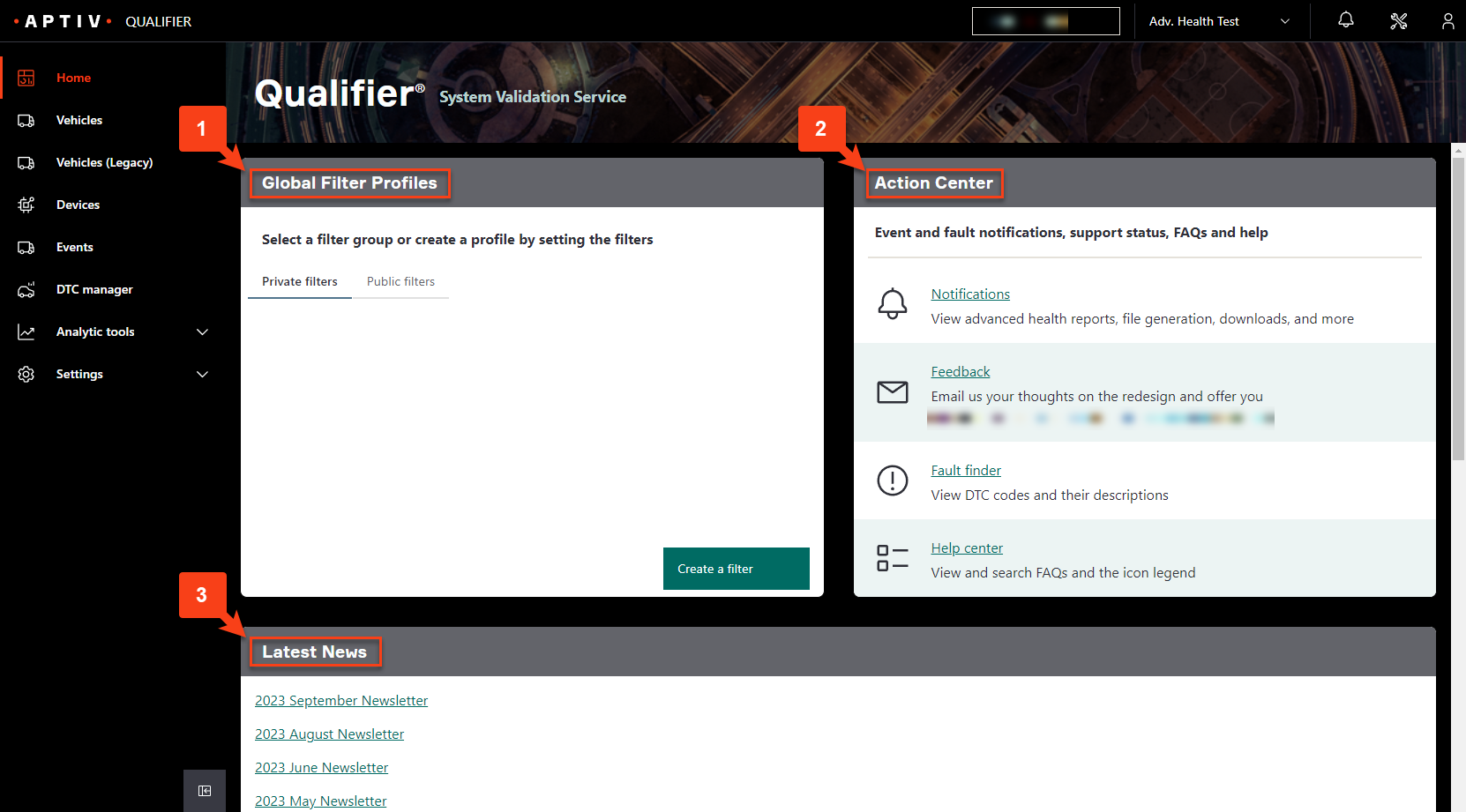
Global Filter Profiles hold saved filters. Applying one narrows every page in the application at once, which is why the next part of this tutorial treats filtering as the first thing you do rather than an afterthought.
Action Center collects the things you reach for occasionally: notifications, the support desk, fault finder for looking up a diagnostic code, and a link to this Help Center.
Latest News carries announcements and the monthly newsletter.
See Home for the detail.
The left navigation
The navigation on the left is the spine of the application. It stays with you everywhere.
| Item | What it is for |
|---|---|
| Vehicles | Your data organized by vehicle identification number (VIN). Start here when you know which vehicle you care about. Drill from a vehicle into its trips, and from a trip into the files behind it |
| Command Center | A live map of the fleet, with health alerts as they happen. Built for watching vehicles that are running right now rather than analyzing ones that already ran |
| Events | Datalogs captured when a trigger fired. This is where most troubleshooting starts |
| DTC Manager | Diagnostic trouble codes, their history, and the data captured around them |
| Analytic tools | The analysis surfaces: Analytics, Snapshots, Reports, Qualifier Ingest, and DATALAB Results |
Note the spelling in the navigation: it reads Analytic tools, while the product itself is Qualifier Analytics.
The top bar
The top bar holds the filter profile selector, so you can switch the filter applied across the application without going back to Home, along with the support desk, notifications, and your account.
One thing that catches everybody
Vehicles, Events, and DTC Manager all apply a date filter the moment they open, usually the last two weeks. A page that looks empty is far more often a date range than a data problem. See Set the date range.
For the shared interface patterns behind all of this, including grids, columns, and search, see Understanding the interface.