Manage your experiments
Experiment History lists your DATALAB jobs, their processing state, and the actions currently available. Return here to check a run, download completed results, repeat a job, or remove it from your history.
Open Analytic tools > DATALAB Results to get there.
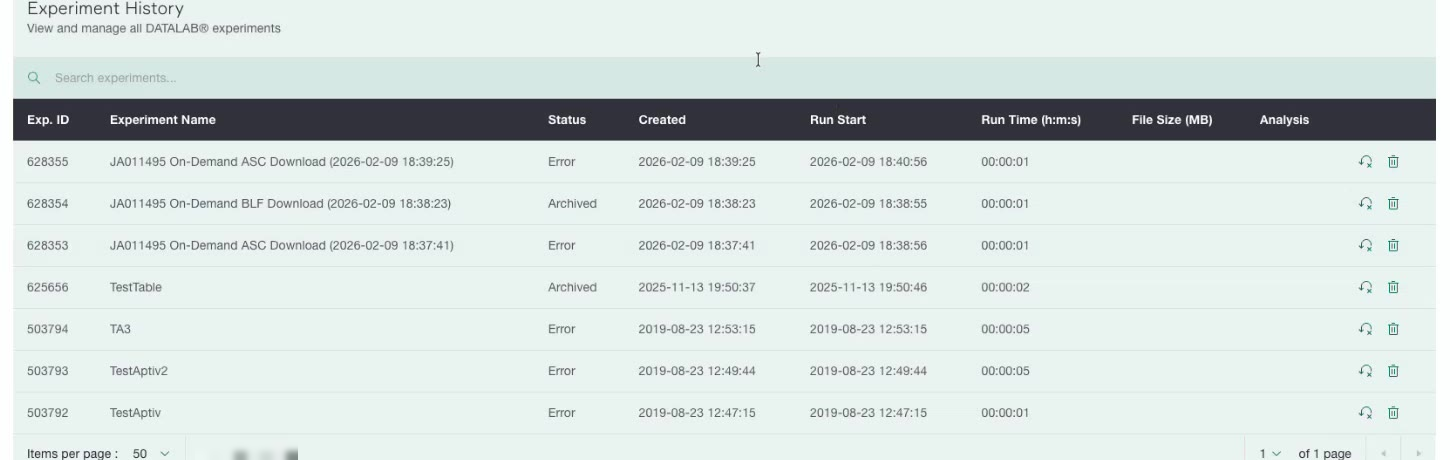
What the grid shows
| Column | Description |
|---|---|
| Exp. ID | The identifier Qualifier assigned to the experiment |
| Experiment Name | The name you entered at checkout |
| Status | Where the run has got to |
| Created | When you created the experiment |
| Run Start | When processing began |
| Run Time (h:m:s) | How long the run took |
| File Size (MB) | Size of the output |
| Analysis | Actions available for this experiment |
Use Search experiments above the grid to find one by name.
Statuses
| Status | Meaning |
|---|---|
| Running | The experiment is being processed |
| Complete | The run finished and the results are ready to download |
| Error | The run did not finish |
| Archived | The experiment has aged out and its results are no longer available |
Download your results
When an experiment reaches Complete, use the download control in the Analysis column to retrieve the output in the formats you selected.
Experiments are archived automatically after a period of time, and an archived experiment's results cannot be downloaded. If you need to keep an output, download it soon after the run finishes.
Re-run an experiment
If an experiment errored, or you want to run the same setup again over the same files, use the re-run control in the Analysis column. This saves rebuilding the whole configuration in the wizard.
Delete an experiment
Use the delete icon in the Analysis column to remove an experiment from your history.
What you will not see here
Experiment History shows only your own experiments. Experiments created by other people in your organization do not appear, and yours are not visible to them.