Open AC-Graph
AC-Graph opens in context from the file you want to investigate. Click its icon on a supported grid or detail view, and Qualifier launches the graphing workspace with that recording already loaded.
The icon appears on the Vehicles, Events, and DTC Manager pages; there is no separate address to visit.
Depending on how your organization is set up, you may be asked to sign in a second time through your own single sign-on.
From the Vehicles page
-
Click Vehicles in the left navigation.
-
Click a VIN to open the vehicle detail drawer. It opens on the Trips tab.
-
Click the AC-Graph icon in the Trip Details column.
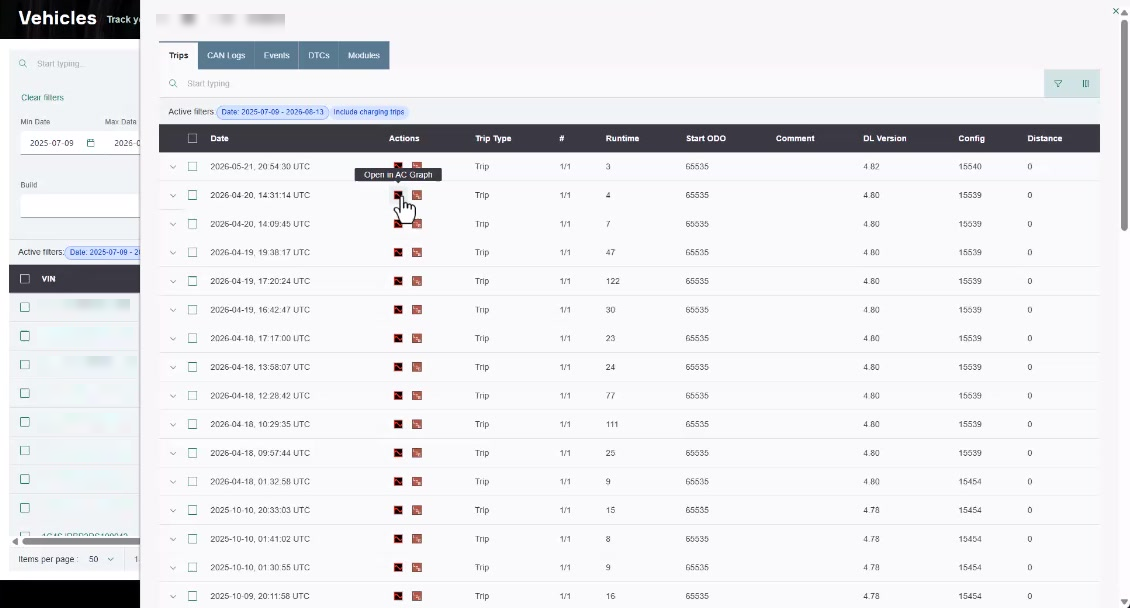
To open a trip detail file instead of the whole trip, click the chevron at the left of a row to expand it, then click the AC-Graph icon in the Actions column.
For the full procedure, see Open trip files in AC-Graph.
From the Events page
- Click Events in the left navigation.
- Click an event name to open it.
- Open the Packages tab and click a package to list its occurrences, or open the Vehicles tab and click a VIN.
- Click the AC-Graph icon on the occurrence you want.
You can also click the AC-Graph icon directly in the Analysis column of an occurrence row.
For all three routes, see Open event files in AC-Graph.
From DTC Manager
- Click DTC Manager in the left navigation.
- Click a DTC to open it.
- Open the Vehicles tab and click a VIN.
- Click the AC-Graph icon on the row you want.
From a vehicle's Events tab
- Click Vehicles in the left navigation and open a VIN.
- Click the Events tab.
- Click the AC-Graph link on the event file you want.
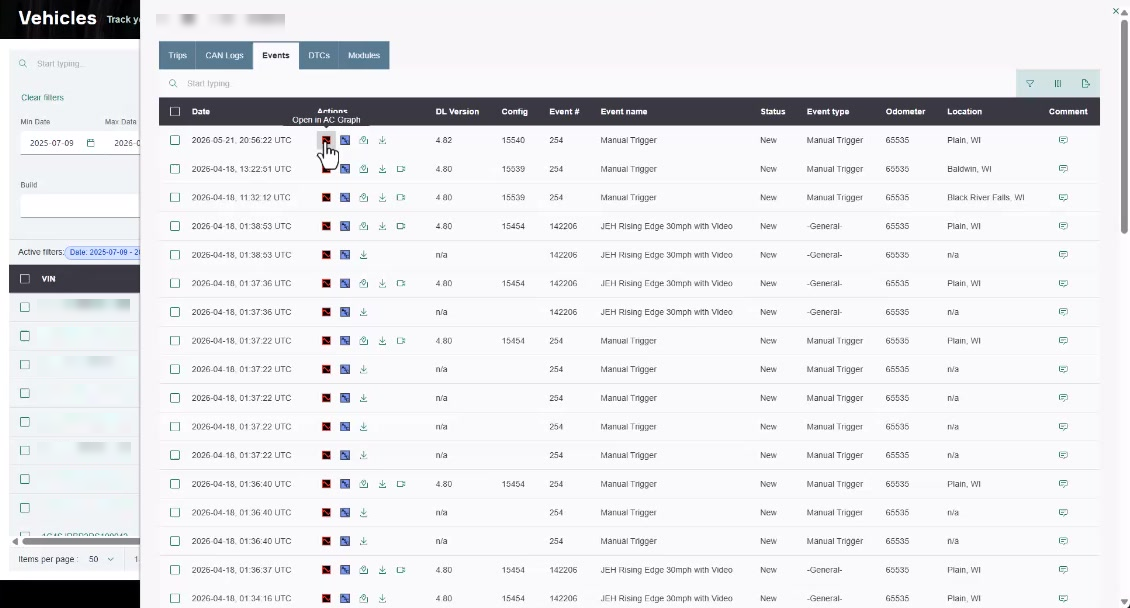
The Actions column on an event row carries the other things you can do with the file as well, including downloading it and viewing any video recorded with it.