Reports (legacy)
This page documents the legacy Qualifier interface. Unless a task is only available there, the User Guide covers the interface you see when you sign in.
To reach the legacy interface, set the Next-Gen UI toggle in the top bar to Off.
Subscribing to reports
Create a subscription when you want Qualifier to generate and send the same report daily, weekly, or monthly.
The Notifications Manager controls which reports you receive and their schedule. Its workflow is similar to event-alert setup.
Report subscriptions are managed only in the legacy interface.
To create a subscription:
-
Open legacy Qualifier.
-
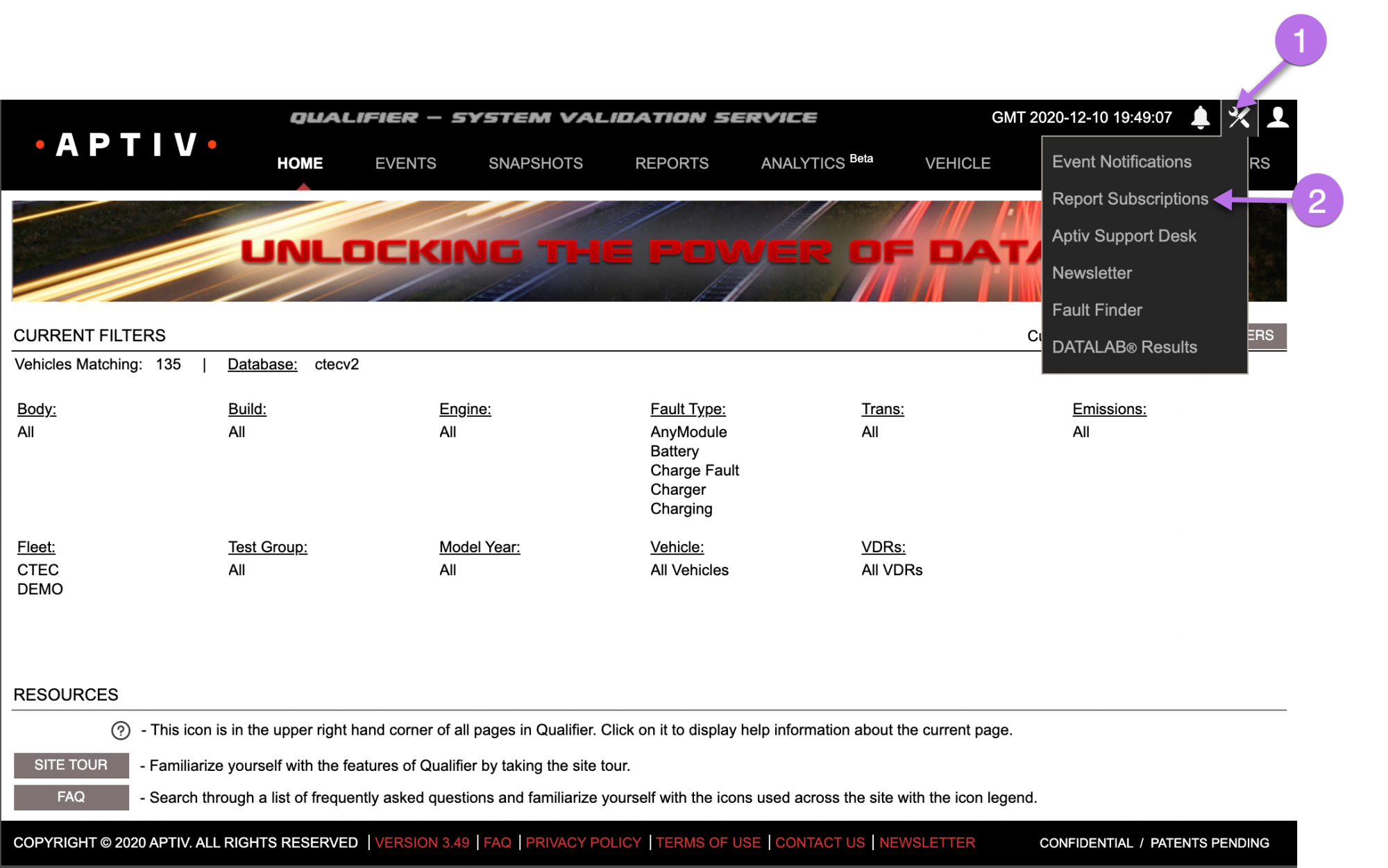
Click the tool icon on the upper right corner of the window to open the Notifications Manager.
-
Click Report Subscriptions.
-
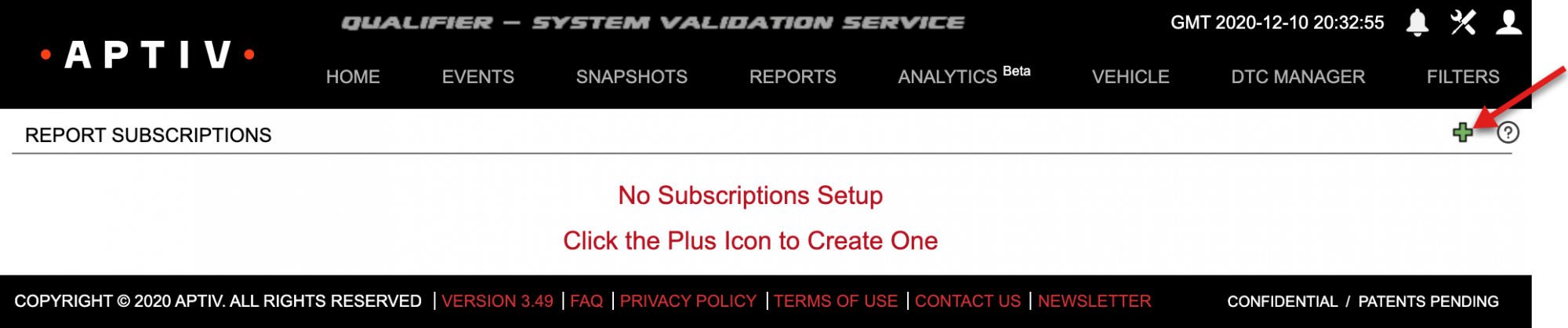
Click the green plus icon in the upper right corner of the Report Subscriptions window.
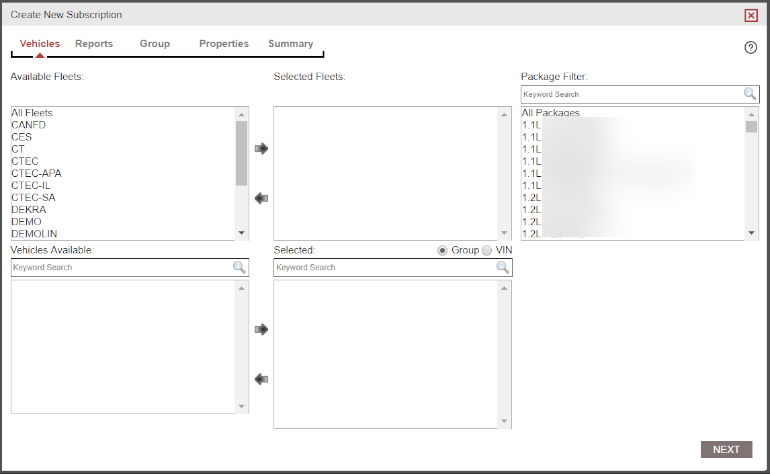
- Select the vehicle(s) or groups of vehicles that Qualifier should include in the report subscription by using the right arrow to select and the left arrow to deselect and click Next to continue.
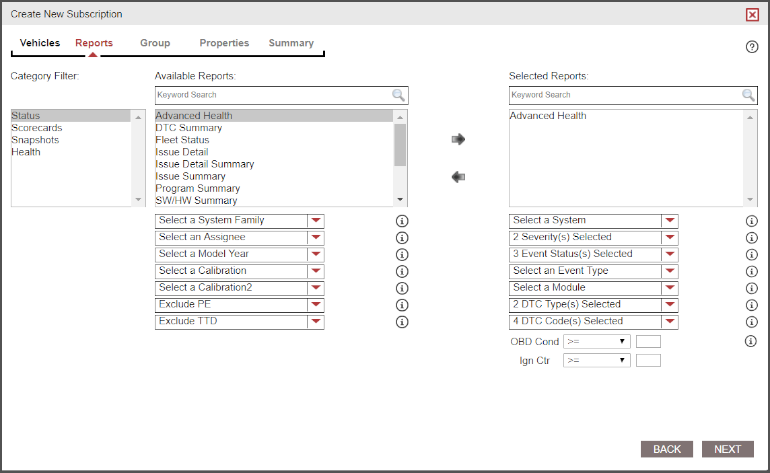
- Use the filter boxes to help you locate the report(s) you would like to subscribe to and click Next to continue.
-
Make your selections in the Group screen, which will look differently depending on what you’ve selected to this point. Below are a couple of example screenshots.
-
Name your subscriptions (required), then determine how frequently you would like to receive your reports and if you would like to receive them as PDF or XLSX files. Click Next to continue to the final screen.
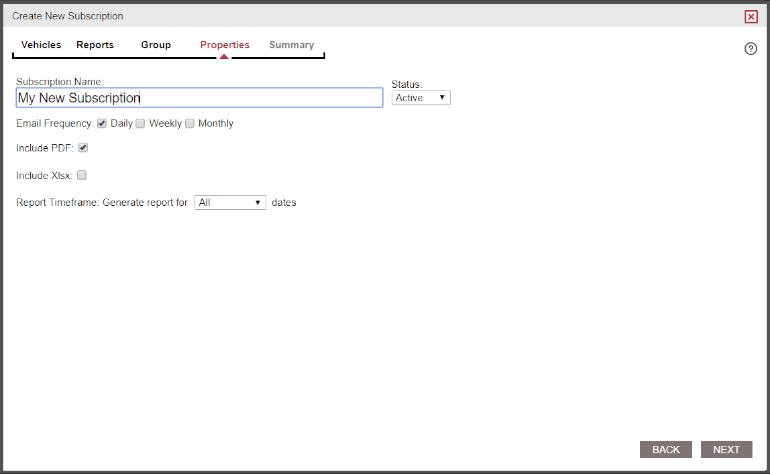
You also have the option to make alerts active or inactive.
- Review your summary. Click Back in the lower right corner of the window to return to the previous sections or click the tabs along the top to return to a specific section.
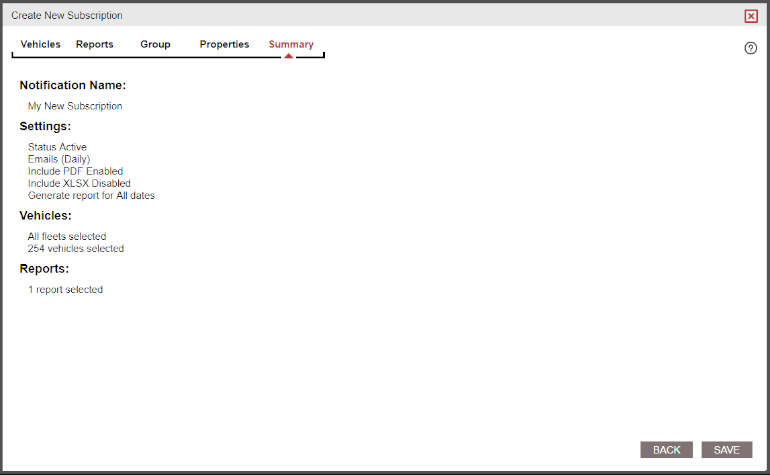
- When ready, click Save to save your notification and return to the Notifications Manager.