Use Video Insights in AC-Graph
Video Insights is an optional Qualifier feature that analyzes recorded video and labels scenes, objects, road features, and environmental conditions. AC-Graph synchronizes those labels with the signals plotted for the same recording.
Detections such as bridges, tunnels, traffic, weather, vehicles, pedestrians, and road signs become structured markers that you can navigate alongside parameter data.
Choose which camera feeds you see
Where a vehicle carried more than one camera, you control which feeds appear in the Media pane.
- Open a file that contains video.
- Click the Media tab in the top left.
- Click the settings gear icon in the header.
- Choose a display orientation: single, dual, or quad.
- Turn each camera on or off.
Cutting down to the feeds that matter for the question you are asking makes the labels far easier to read. The example above turns off the interior camera and switches to a single view.
Choose which labels appear
The Video Insights button above the video opens a panel of check boxes controlling what gets drawn.
| Label type | Examples |
|---|---|
| Scene | Bridges, tunnels, lane markings, traffic jams, road conditions |
| Weather | Cloudy, foggy, rainy, snow covered streets |
| Object | Cars, trucks, buses, motorcycles, pedestrians, cyclists |
| Road sign | Speed limits and other signs |
| Road border | Lane, shoulder, and pavement boundaries |
Keep the video and the graphs in step
Toggle Video Cursor to lock the video and the charts together.
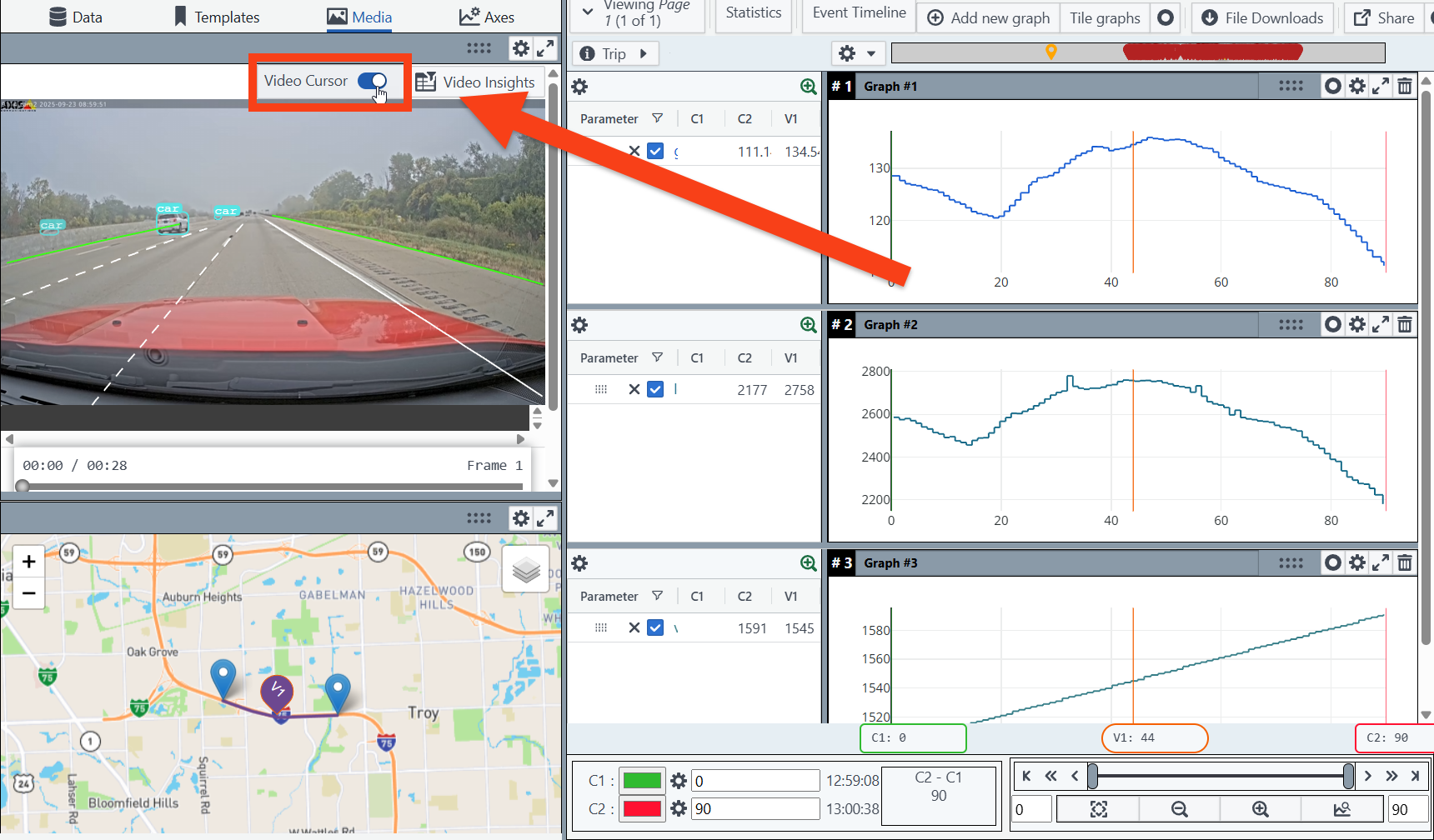
With it on:
- A vertical cursor appears in the Event Timeline and in each graph
- The cursor marks the exact moment you are watching
- Moving it updates every linked view at once
That is what lets you line up what the camera saw against what the data recorded.
Jump to what was detected
Video Insights also adds labeled markers to the Event Timeline.
Markers appear for things like a bridge, tunnel, or traffic jam; fog, rain, or snow covered road; a vehicle, pedestrian, or motorcycle entering view; or a speed limit sign being read.
Click a marker to move the cursor to that moment. It saves scrubbing through a whole drive looking for the part that matters.