Use the GPS heat map in AC-Graph
The GPS heat map maps parameter values onto a recorded route with color. It can show where speed, temperature, or any other available signal changed during the drive.
Create and apply a heat map
- Sign in to Qualifier.
- Open AC-Graph by clicking the AC-Graph icon on the Vehicles, Events, or DTC Manager page.
- Click the Media tab in the left panel.
- Click the gear icon on the map.
- Click the Heat Map tab.
- Turn on Apply heat map.
- Select a parameter.
- Set your value ranges and colors.
- Click Save.
Save a configuration as a template
A template preserves the ranges and colors for reuse with comparable data.
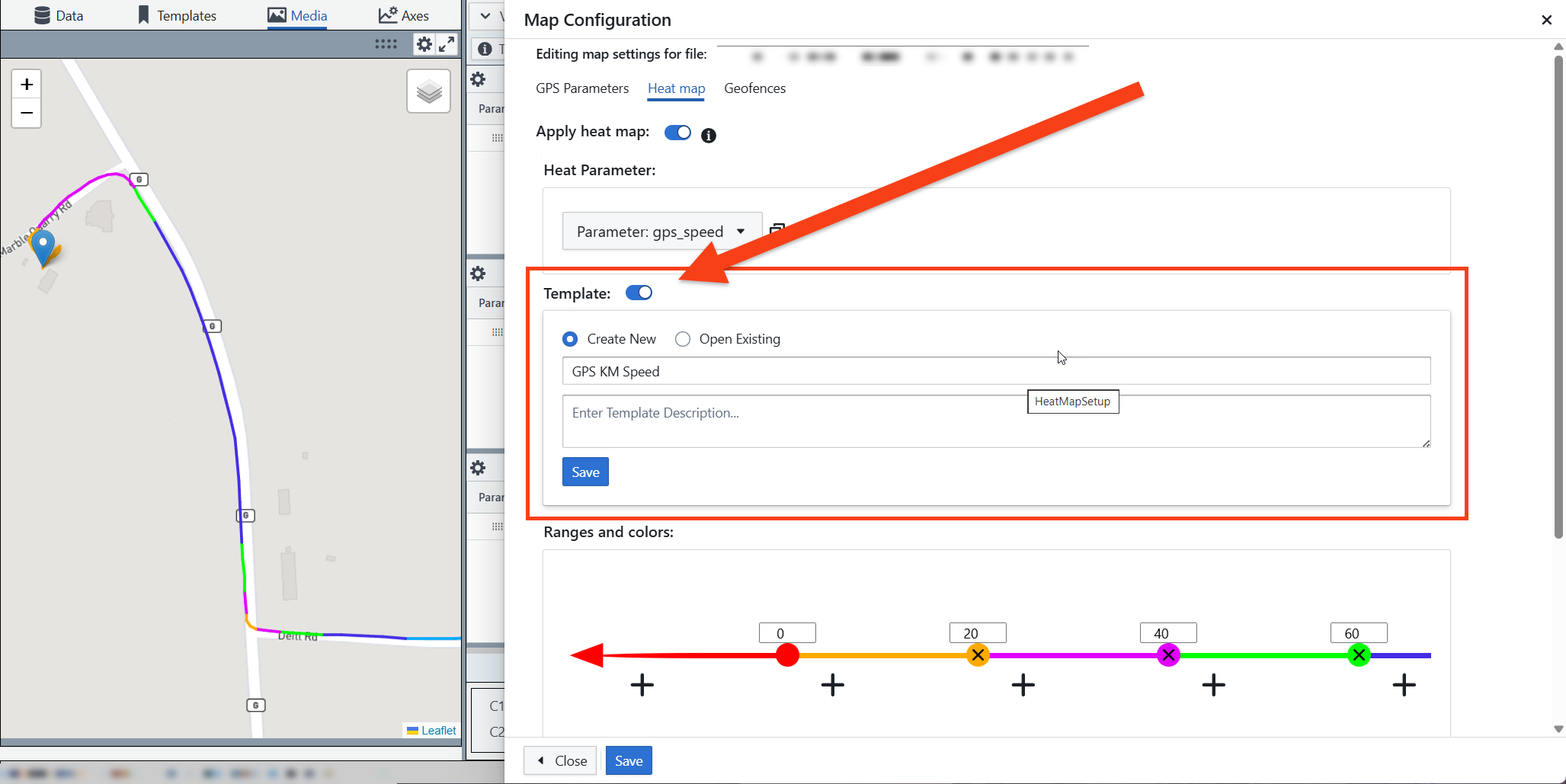
To save one, once your ranges and colors are set:
- Turn on Template to open the template menu.
- Enter a name and description.
- Click Save.
To use one:
- Turn on Template to open the template menu.
- Click Open Existing.
- Click the template you want.
- Click Open.
The ranges and colors apply to the route on screen.
Color mapping
Color mapping decides how values translate into what you see on the route.
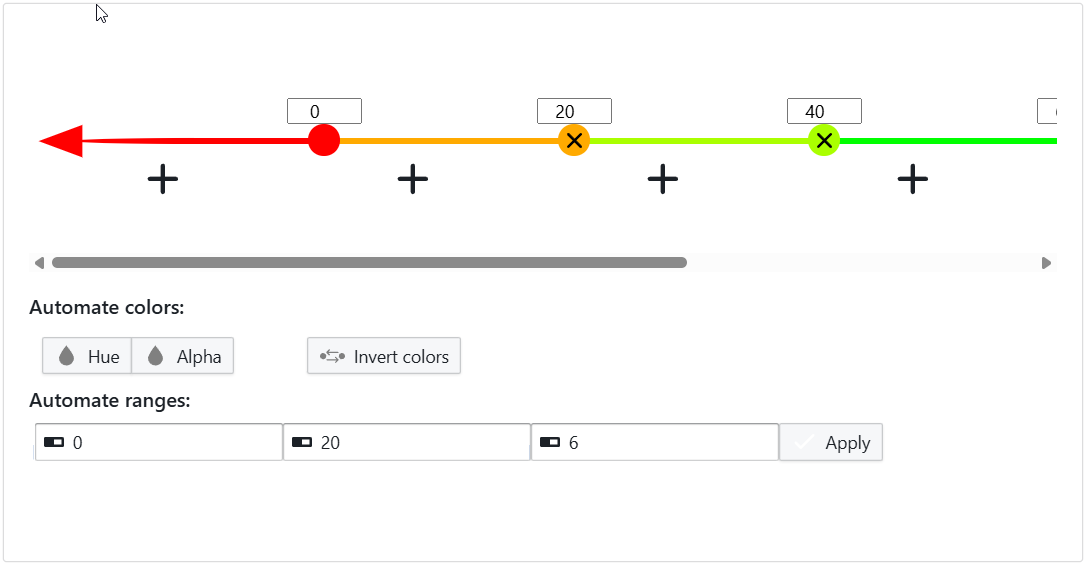
Hue spreads a range of colors across the values. Use it when you want to pick out variation along the route.
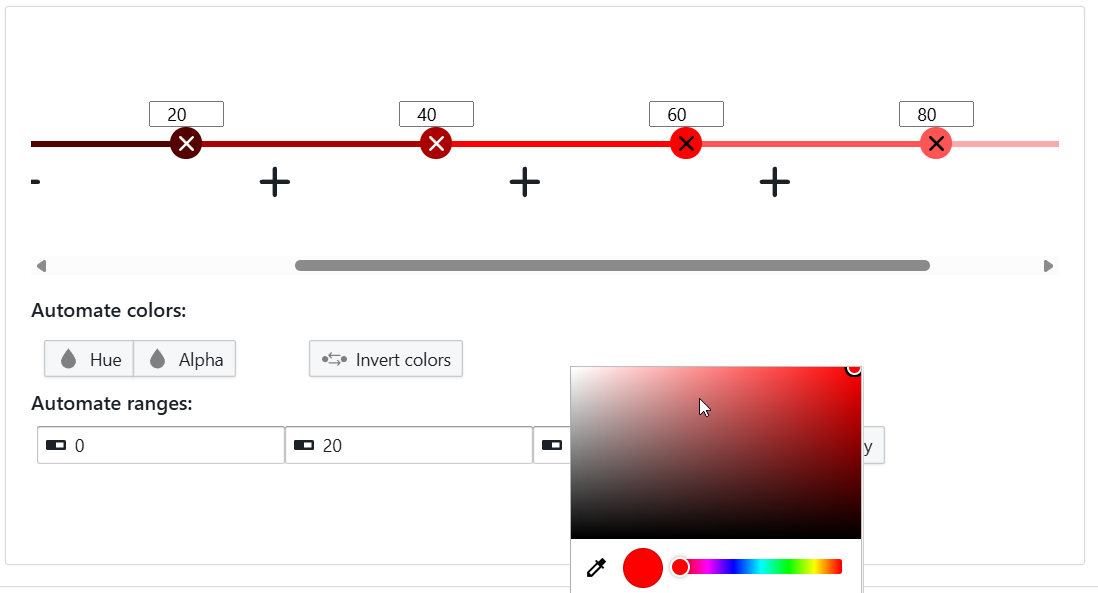
Alpha uses a single color and varies its opacity. Use it when you want a simpler, calmer picture.