Submit a support ticket
Use the Aptiv Support Desk inside Qualifier to report a problem, ask a question, request a feature, or tell Aptiv about a configuration change or new vehicle data recorder (VDR).
The desk creates a ticket and emails you, along with any watchers you add, as the request progresses.
Open the support desk
Click the support desk icon in the top right of the window. It opens in a drawer.
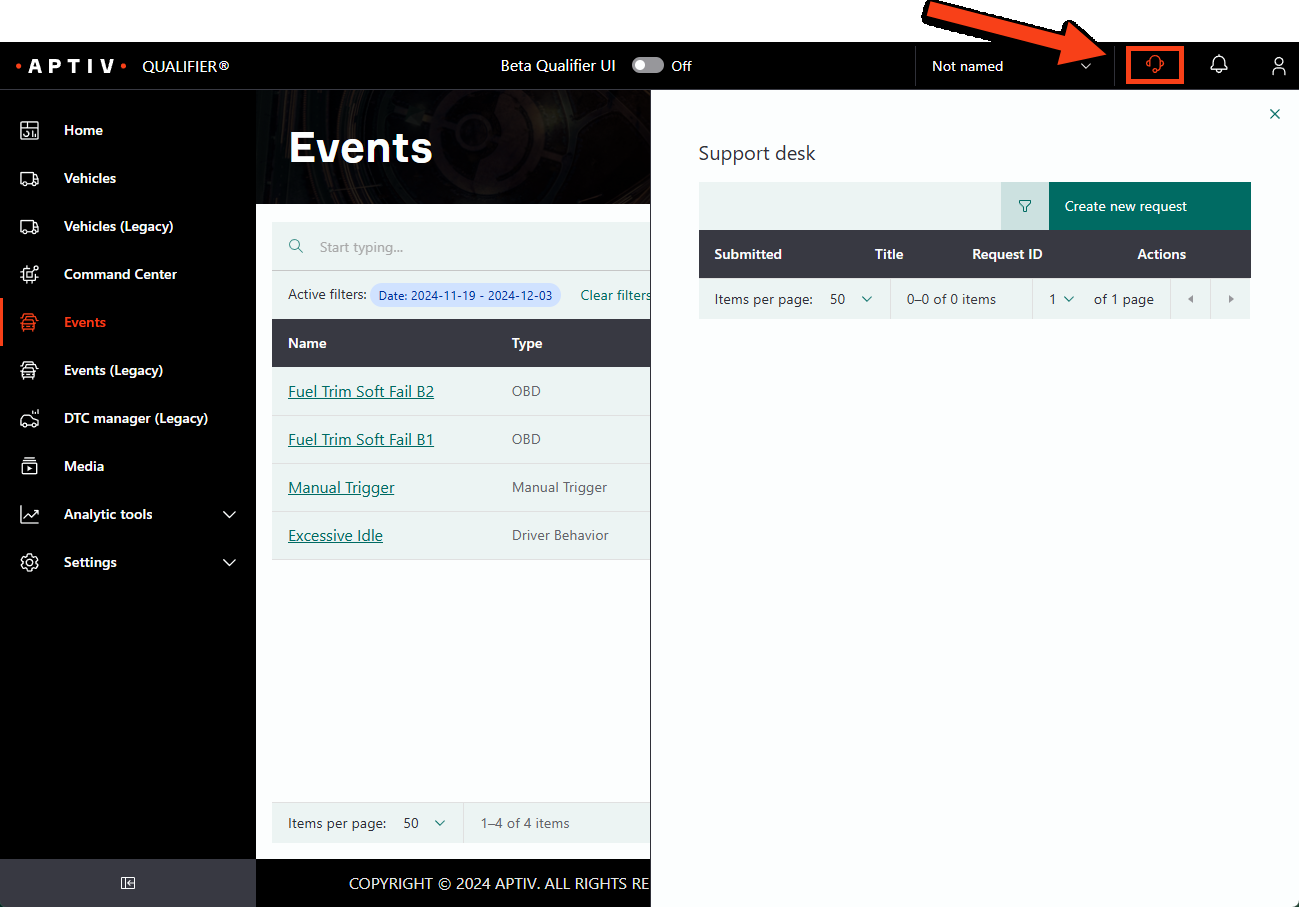
The drawer lists your active requests.
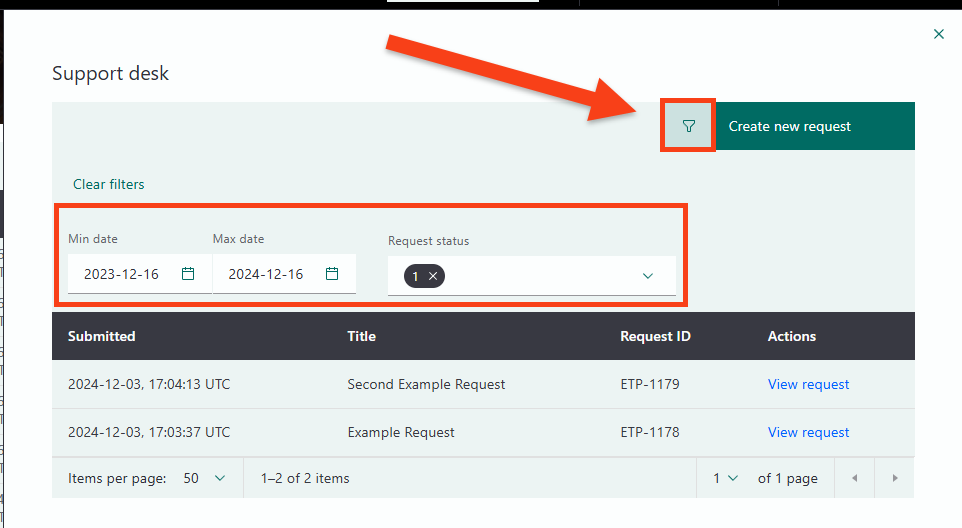
Filter your requests
With the drawer open, click the filter icon to filter by date or by status.
Create a request
Click Create New Request, choose a request type, and fill in as much detail as you can. Fields marked with a red asterisk are required.
Include what you were doing, what happened, and what you expected. Specific detail helps the support team give you a useful answer sooner.
Comment on or edit a request
- Click View Request on the ticket you want.
- In the drawer that opens you can:
- Read the title, previous comments, and previous attachments
- Edit watchers, add a comment, or add an attachment
- Click Submit.
To leave without changing anything, click the x in the top right. Do not use Cancel Request for this: that cancels the whole ticket.
Cancel a request
Open the request and click Cancel Request, then confirm.