Start a DATALAB experiment from a grid
Start from a grid when you have already found the vehicles, events, or diagnostic trouble codes (DTCs) you want to process. Qualifier carries those selections into DATALAB, allowing the experiment wizard to skip the choices you have already made.
This route is often faster than beginning on the DATALAB page because you select the records directly rather than reconstructing the same set with wizard filters.
Start from the Vehicles page
Use this when you know the vehicles but not yet the files.
- Go to Vehicles and filter the grid down to the vehicles you want.
- Select the check box beside each vehicle to include.
- Click the DATALAB icon in the toolbar above the grid.
- Click New DATALAB experiment from filtered vehicles.
The wizard opens at Select Input File Type, because your vehicles are already chosen. Continue from step 2 of the wizard.
Start from an Events or DTCs grid
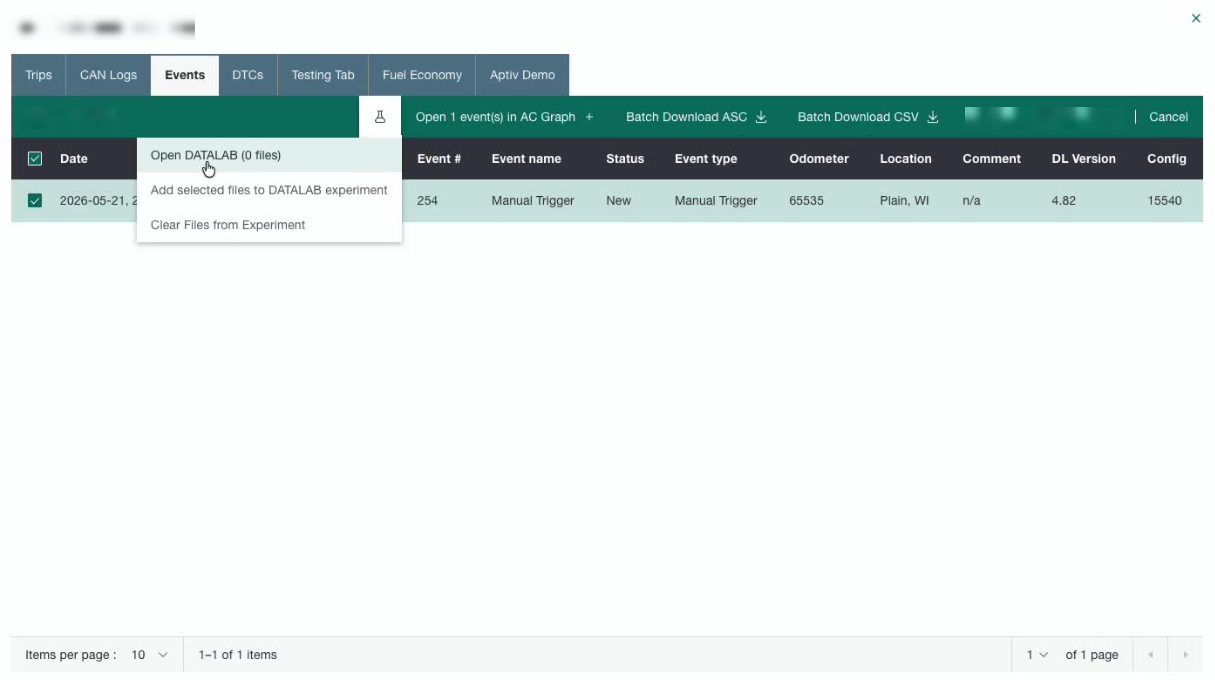
Use this when you know the exact records you want. This is the most direct route into DATALAB.
- Open a vehicle from the Vehicles page, then open the Events or DTCs tab. You can also work from the main Events or DTC Manager page.
- Select the check box beside each record you want.
- Click the DATALAB icon in the toolbar that appears above the grid.
- Click Add selected files to DATALAB experiment.
The toolbar shows a running count, so you can confirm what you have added.
Add more records before you start
You do not have to add everything at once. After adding a first set, you can change the filters, move to another page of results, select more records, and add those too. The experiment keeps accumulating files.
To start over, click Clear Files from Experiment.
Open the wizard
When you have everything you want, click the DATALAB icon again and click Open DATALAB.
The wizard opens at Select Analysis Type, because both the vehicles and the input file type are already known from the records you selected. Continue from step 3 of the wizard.
What happens to the rest of the wizard
Nothing else changes. Once you are inside the wizard, every remaining step behaves exactly as it does when you start from the DATALAB page, including data reduction and checkout.