Set the date range
Several Qualifier pages open with a date range already applied. Check this filter first whenever expected vehicles, trips, events, or diagnostic trouble codes (DTCs) are absent.
Pages open already filtered
Qualifier holds a great deal of data, and for some organizations it goes back years. Working across all of it at once slows the application badly, so several pages arrive with a date filter already applied.
Vehicles, Events, and DTC Manager all open showing roughly the last two calendar weeks. The exact window depends on your organization.
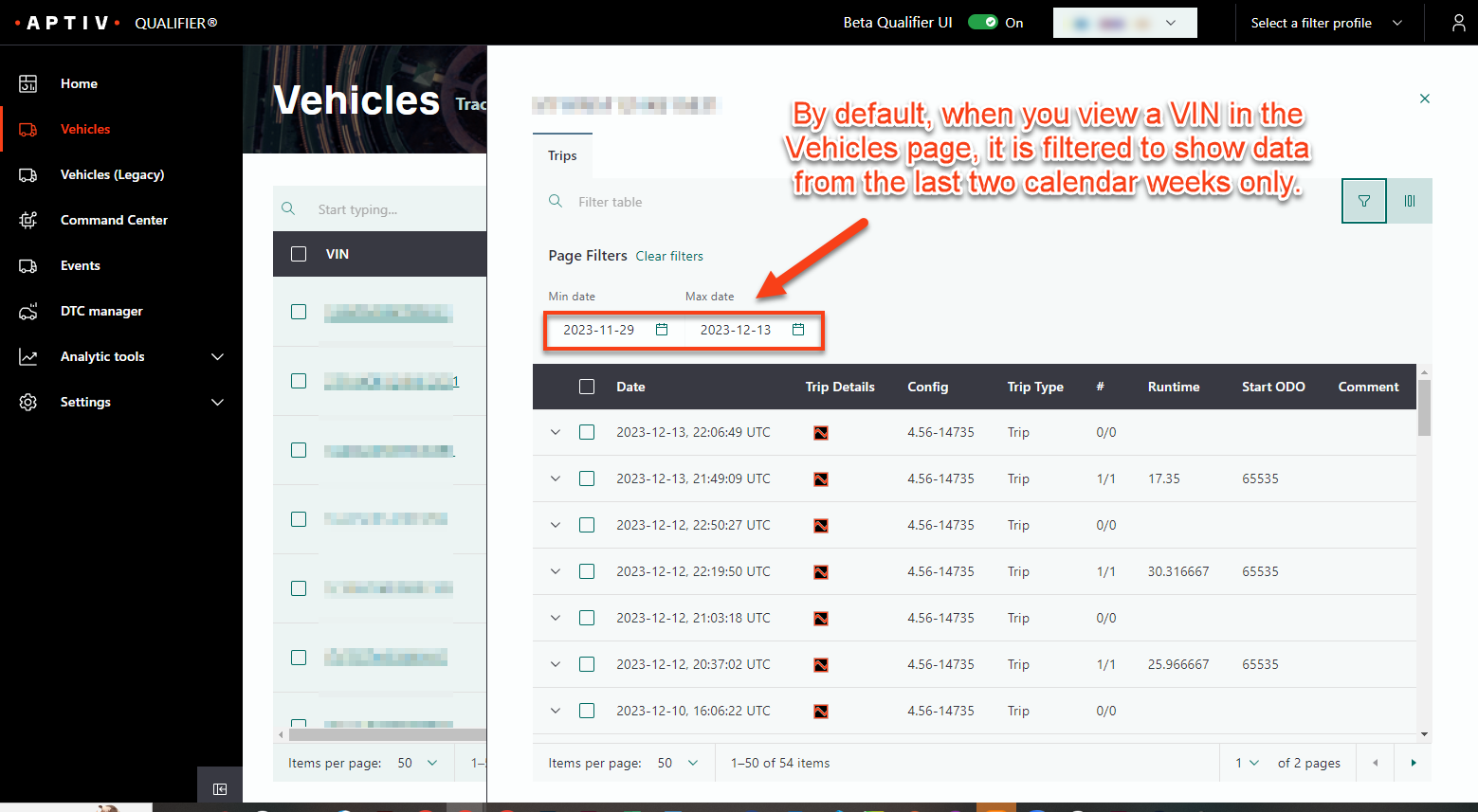
The practical result is easy to miss. If a page is empty, a known trip is absent, or an expected vehicle does not appear, inspect the date range before assuming the data has gone anywhere.
Look for the active filter chips below the search bar. They show the range currently in force.
Change the range
- Click the filter icon on the page.
- Set Min Date and Max Date.
- Click Apply.
Move around the calendar quickly
Clicking through months one at a time is slow when you are going back a year or more.
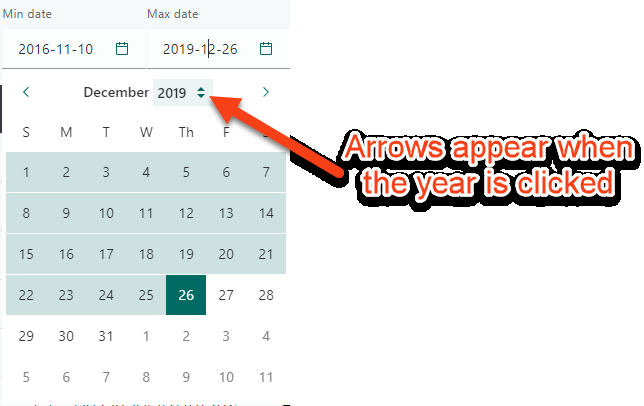
Click the year itself in the calendar header. Up and down arrows appear, and you can also type the year you want directly.
Keep a filter on
It is tempting to widen the range to everything and stop thinking about it. Resist it. Wide ranges make pages slow to load and bury what you are looking for in years of history.
Set the range to the period you actually care about, and widen it deliberately when you need to.
Related
- Use global filter profiles, which filter by vehicle rather than by date
- Vehicles
- Events
- DTC Manager