Open trip and trip detail files in AC-Graph
Open an entire trip for a continuous view, or choose one trip detail file when you need a specific recording. Both routes begin from the vehicle's Trips tab.
-
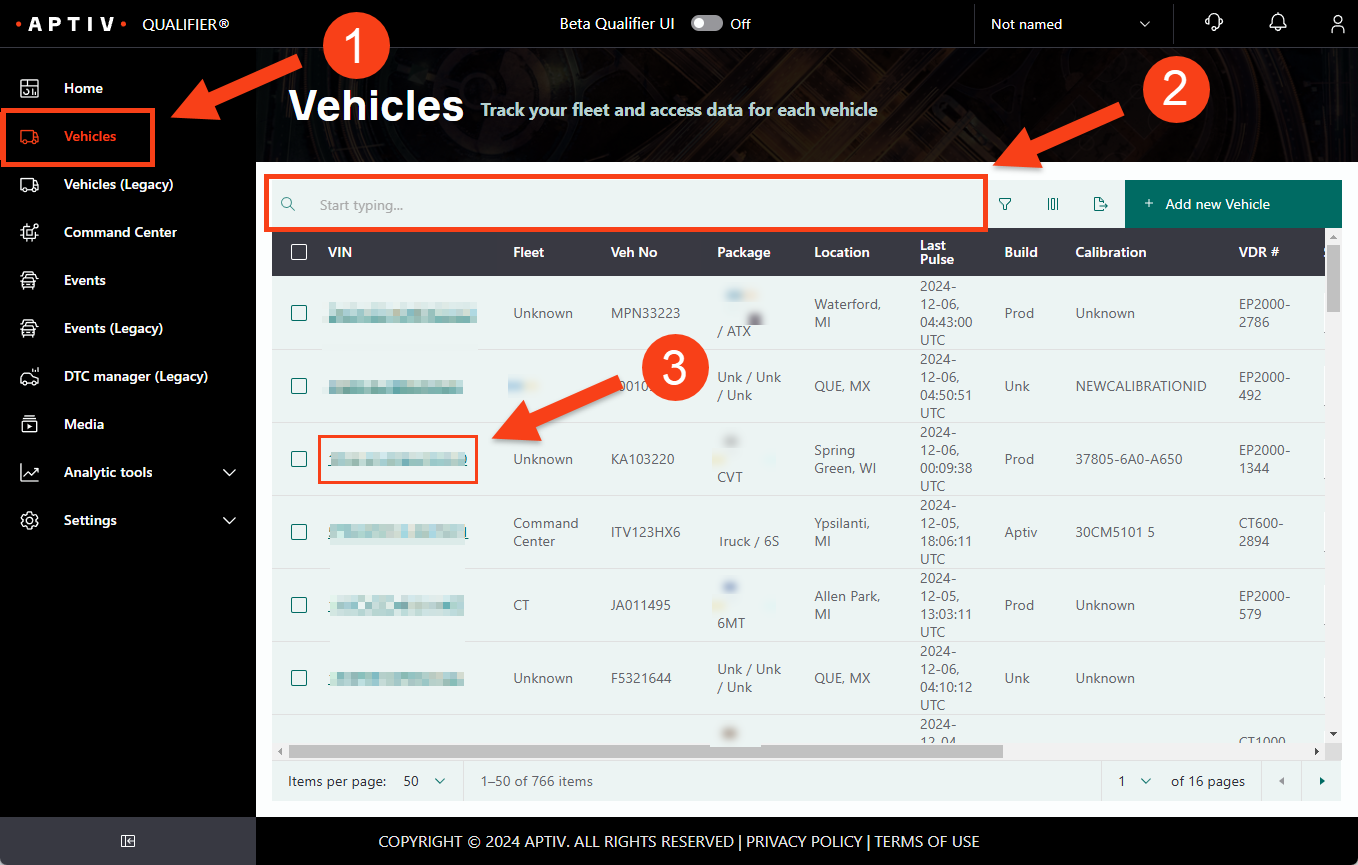
Click Vehicles in the left navigation.
-
Use the omnisearch bar to find the vehicle. You can search by vehicle identification number (VIN), fleet, vehicle number, package, location, build, calibration, or vehicle data recorder (VDR) number.
A global filter profile narrows the list before you start, which makes this quicker.
-
Click a VIN to open the vehicle detail drawer. It opens on the Trips tab.
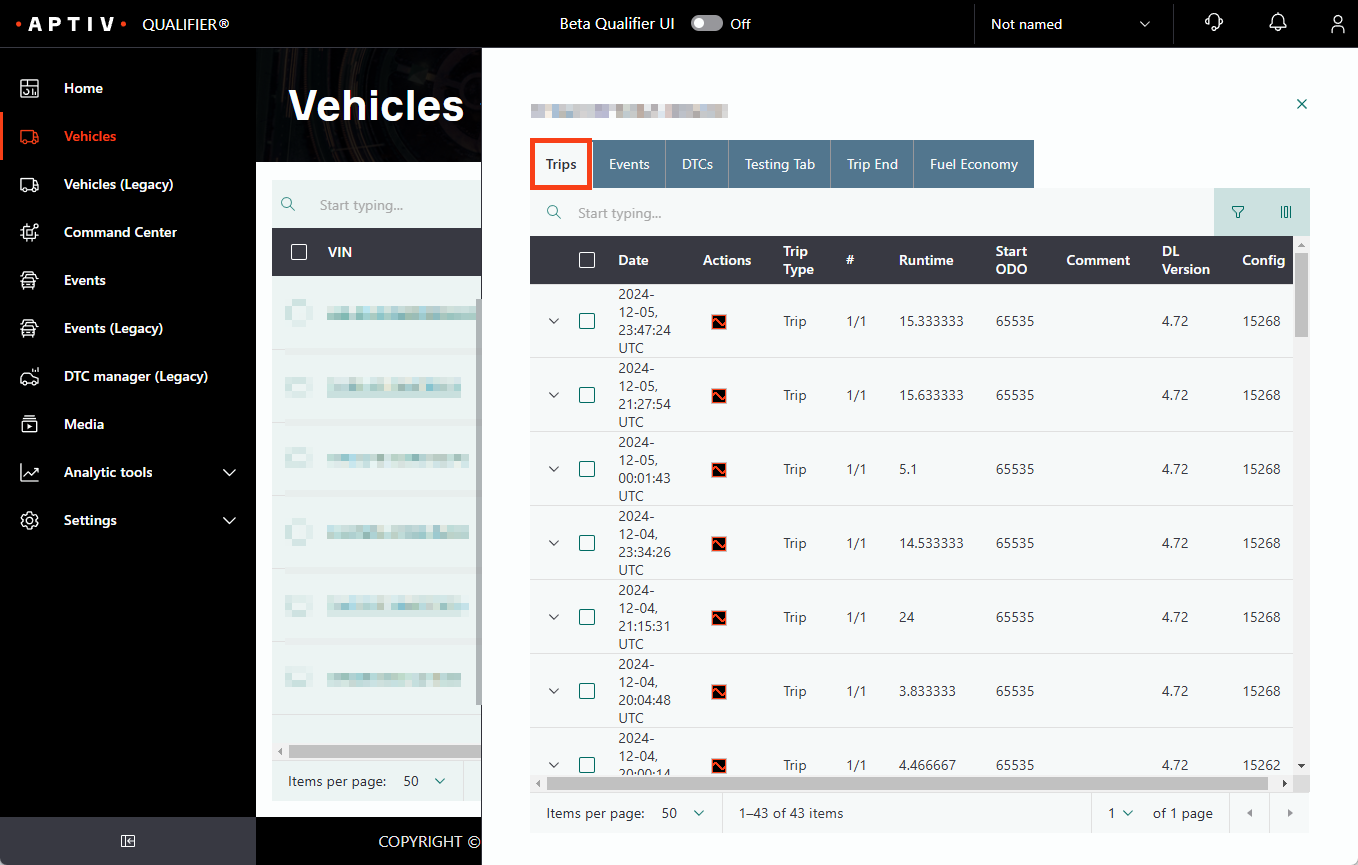
Each tab has its own omnisearch bar if you need to narrow further.
-
Open the file you want:
-
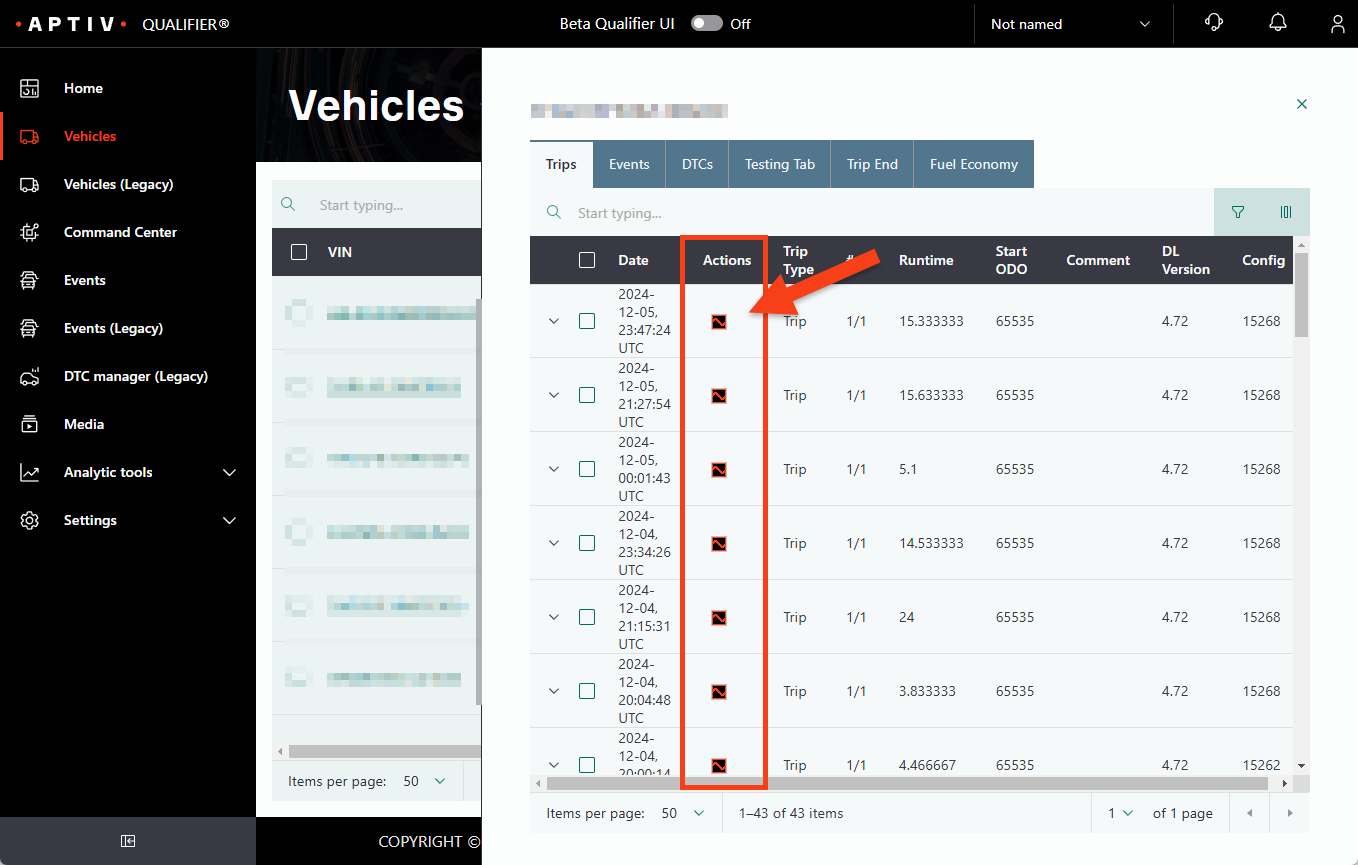
For a trip, click the AC-Graph icon on that row.
-
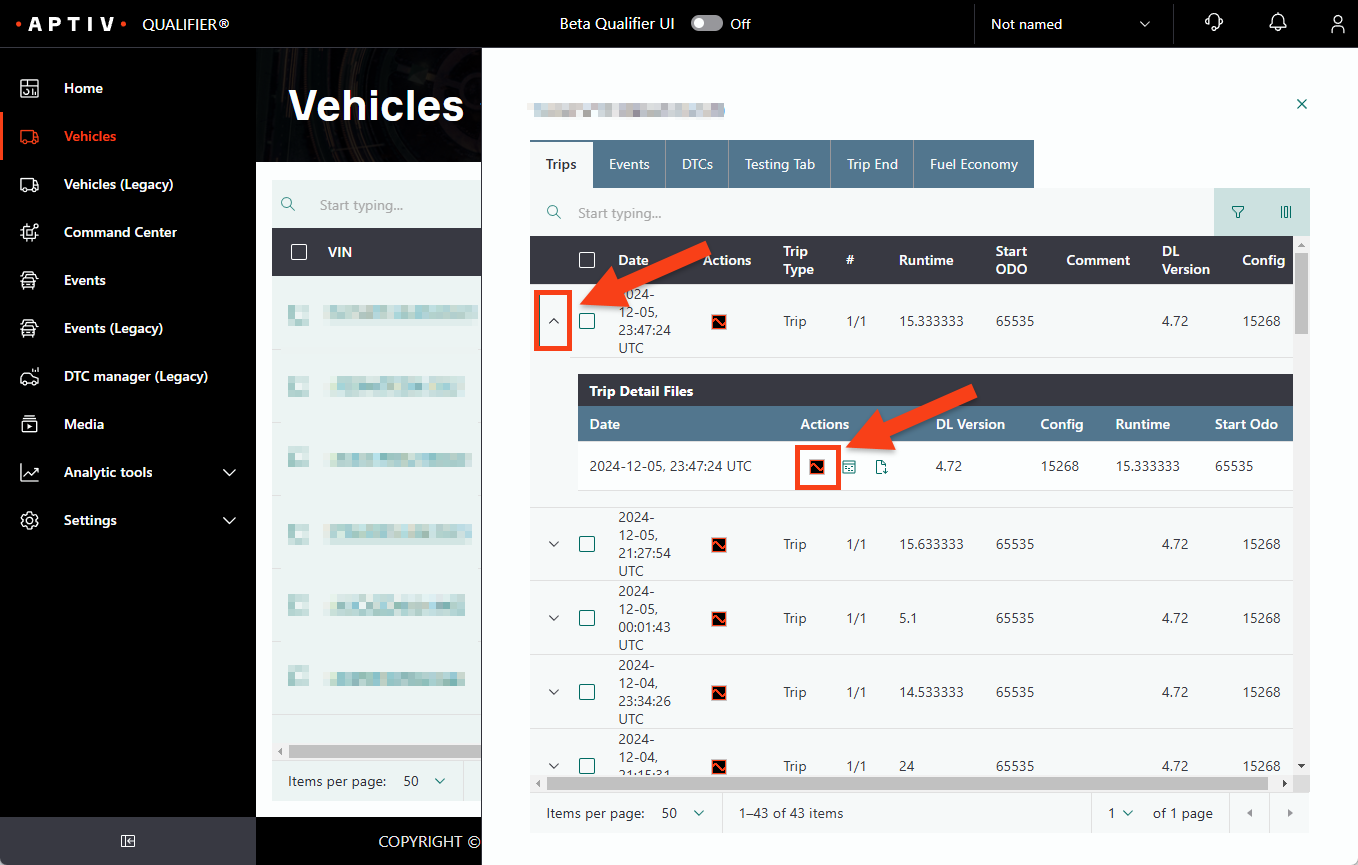
For a trip detail, click the chevron at the left of the row to expand it, then click the AC-Graph icon on the detail row.
-
Vehicles opens with a date filter already applied, covering roughly the last two weeks. If the trip you want is older than that, widen Min Date before you go looking for it. See Set the date range.