Download Advanced Health Report files
Download an Advanced Health Report when you want to explore its results in Excel or keep a portable copy. The download includes the summary workbook and supporting files for the diagnostic trouble codes (DTCs) and events behind the report.
Download the report
-
Run an Advanced Health Report from the Reports page.
You have to select a system family for the report to run. To see DTC data you also need DTC types and DTC codes selected, though in most cases those are selected by default.
-
When the report finishes, download the output.
The download is a compressed folder named Advanced Health Summary. Your browser may extract it automatically; otherwise, open the archive yourself. The main workbook has the same name.
Enable macros
The workbook contains macros, so your spreadsheet application may ask whether to enable them. If your organization's security policy permits macros, enable them to use the interactive charts. Without macros, the data remains visible but the charts do not update as you select different rows.
Reading the workbook
It opens on Health Summary Table.
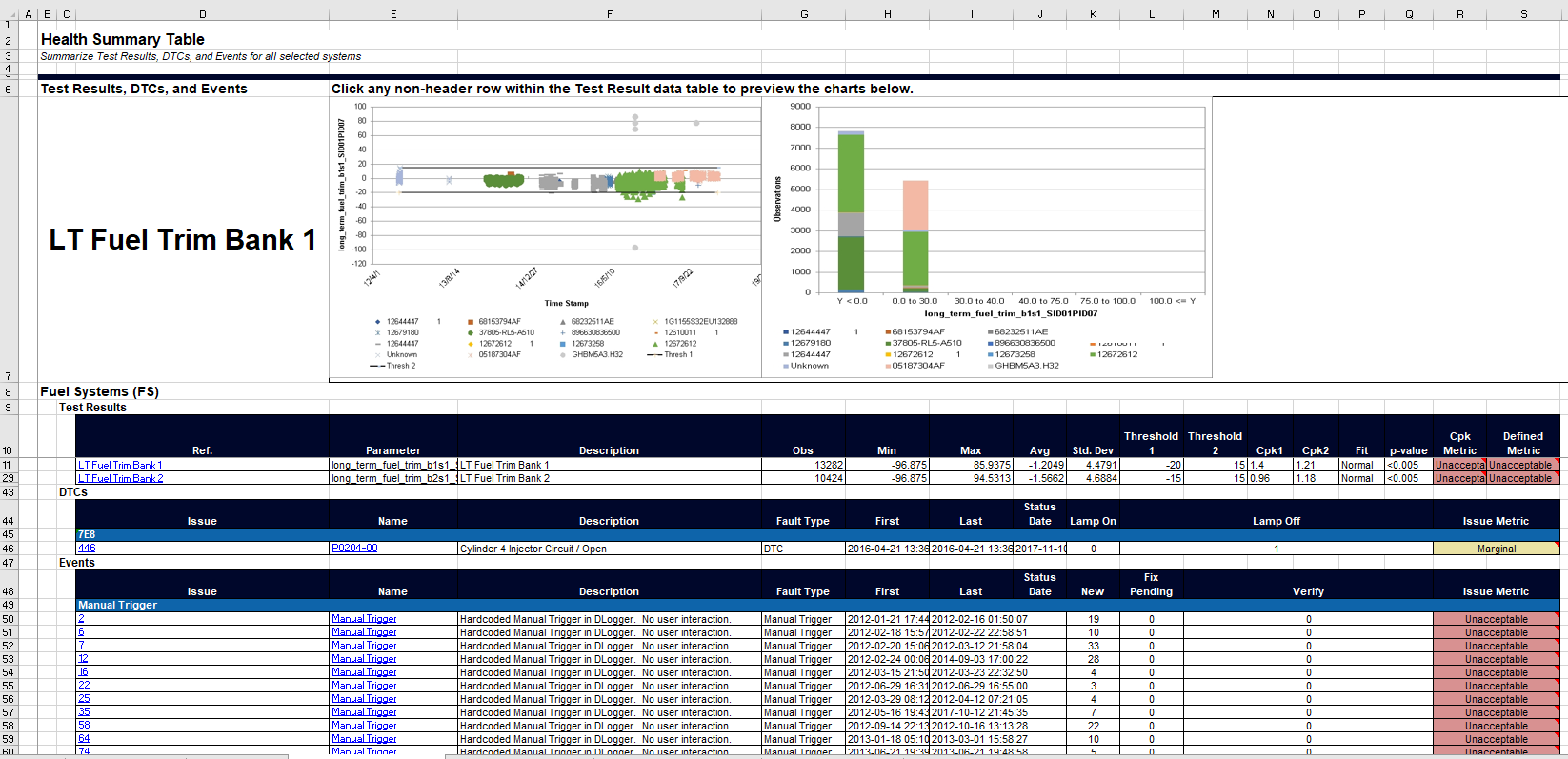
Clicking a row that contains data updates the charts at the top of the sheet.
The other tabs are Report Summary, Vehicle Table, Overall Health Charts, System Definition Detail, and Missing Test Results.
Cell markers
A red triangle in the corner of a cell means there is more to see. Hover over it for the data or the rule behind the value.
A green triangle is your spreadsheet application flagging what it thinks is an error. Usually it is not. It generally means a number is sitting in a text field, which is expected for fields that can hold letters, numbers, or both. Click it for the full explanation.
Links
The workbook links to Qualifier and to supporting spreadsheets in the downloaded folder. Keep those files together; moving them separately breaks the links between workbooks.