Add a group of vehicles
When you need to register several vehicles, the batch-add feature imports their details from a spreadsheet instead of making you complete the form repeatedly.
This task requires the appropriate access level, and the batch-add control appears only when you have it. Otherwise, contact your Aptiv customer support engineer (CSE) through the support desk.
The steps below take place in the legacy Qualifier interface. To get there, set the Next-Gen UI toggle in the top bar to Off. Switch it back to On when you are done.
Illustrated versions of these screens are in Legacy Qualifier.
-
Open Vehicles (Legacy) and click the Properties tab.
-
Click the double-pencil icon beside the plus sign at the right of the page.
-
If you want an on-screen walkthrough, click Instructions in the dialog.
-
Click Download Template.
-
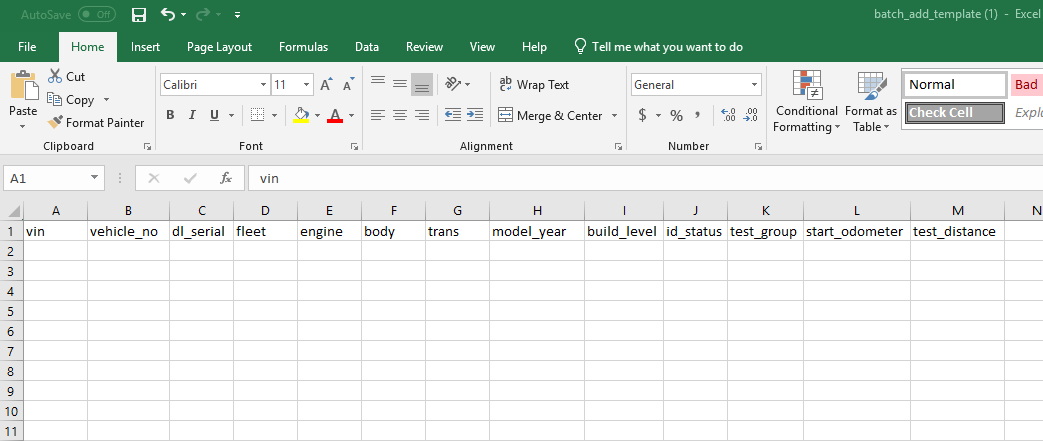
Open the template in a spreadsheet application and fill in the vehicle data.
-
Copy your completed table and paste it into the box marked
Paste your csv here...Include the header rowCopy the header row along with your data. Without it the import does not map the columns and the data will not come in correctly. Select All is the safest way to do this.
-
Click Import.
-
Review the imported table. A red cell contains invalid data and prevents that record from being added. Correct every highlighted value before continuing.