Getting Started
Qualifier turns the data your test fleet records into something you can search, compare, visualize, and analyze. You can follow one vehicle through its trips, look at a single condition across a whole fleet, work through diagnostic trouble codes, and open the underlying signals when a number does not look right.
This page gets you from signing in to finding useful data. It covers the few things that trip people up early, and points at the deeper material once you are ready for it.
Sign in
Each organization has its own Qualifier address. Open the link supplied to you and bookmark it, because there is no central sign-in page to find it from later.
Qualifier uses Microsoft single sign-on. If your organization already uses Outlook or Word, that is the account you sign in with, and you do not need a separate password.
The first time
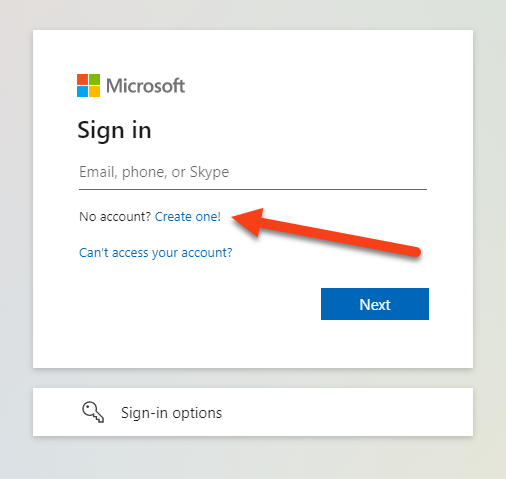
You have to request access before you can get in.
-
On the sign-in page, click Create one!
-
Enter your email address and click Next.
-
Check your email for a code from Microsoft.
-
Enter the code and click Sign in.
-
On the permissions page, click Accept, then Continue.
-
Fill in the form to request access to Qualifier.
Aptiv emails you once your access is approved. You cannot sign in until it is.
After that
If you are already signed in to a Microsoft product, Qualifier opens without asking you anything. If not, enter your email and click Next. Depending on how long it has been since you last signed in, you may be asked for an emailed code again.
Understanding the interface
Every page in Qualifier shares the same three pieces: a bar across the top, the navigation down the left, and a working area in the middle. Learning those three saves you hunting for the same controls on every page.
The top bar

The bar carries the current GMT time on the left, since every time stamp in Qualifier is GMT rather than your local time. That catches people out when they compare a trip against a wall clock.
At the right, in order:
| Control | What it does |
|---|---|
| Next-Gen UI toggle | Switches to the older interface. A few tasks are still only possible there, and each one says so where it comes up |
| Filter profile | Applies a saved global filter profile across every page at once |
| Support desk | Raises a new support request, or shows the ones you already have |
| Notifications | Alerts about report generation, downloads, and events |
| Account | Signs you out |
The left navigation
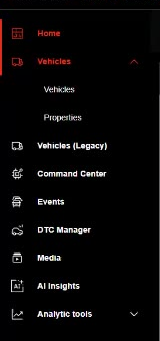
| Item | What it is for |
|---|---|
| Home | Filter profiles, the Action Center, and the latest news |
| Vehicles | Your data organized by VIN, with Properties beneath it |
| Command Center | A live map of vehicles that are running right now |
| Events | Recordings captured when a trigger fired |
| DTC Manager | Diagnostic trouble codes and their history |
| Analytic tools | Analytics, Snapshots, Reports, Qualifier Ingest, and DATALAB Results |
Your navigation may be shorter than a colleague's. What appears depends on what your organization has purchased and on your access level.
One spelling to note: the navigation reads Analytic tools, while the product itself is called Qualifier Analytics.
How the data pages work
The pages that hold data all behave the same way, so what you learn on one carries to the rest.

Omnisearch is the bar across the top. Type into it and the table narrows as you go, matching across every column at once rather than one field at a time.
Active filters appear as chips just below it. They are the fastest way to see why a table is showing what it is showing, and Clear filters removes them.
The icons at the right open the filter panel, choose which columns appear and in what order, and export what you are looking at as a CSV file.
Two things that catch everyone
These are the two most common reasons someone concludes their data is missing. Neither is a fault.
Pages open already filtered by date
Vehicles, Events, and DTC Manager all apply a date filter the moment they open, usually the last two weeks. The exact window depends on your organization.
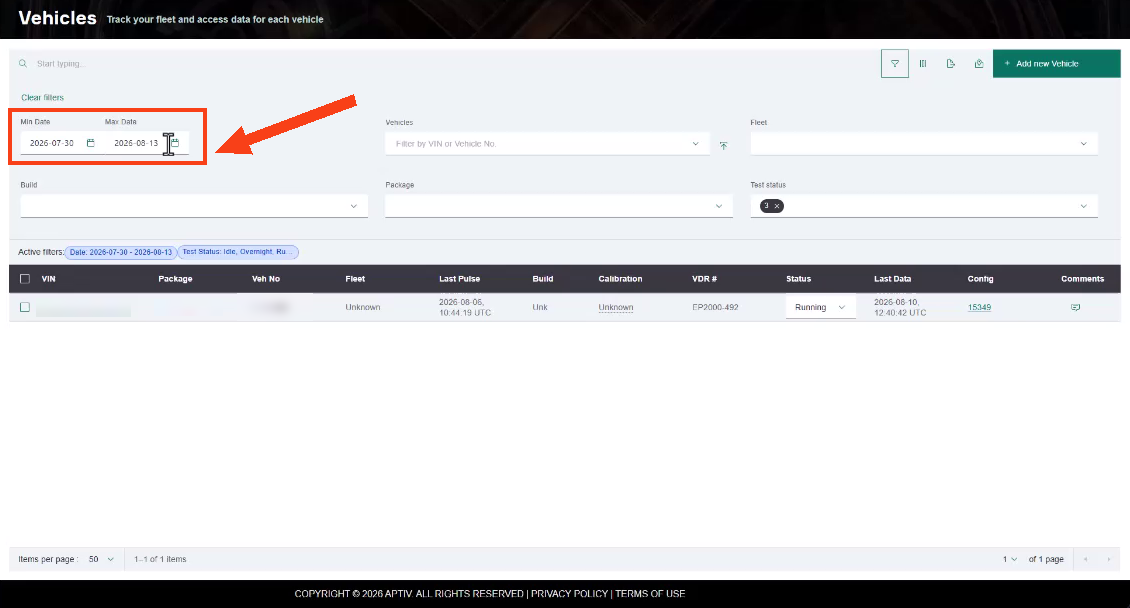
If a page looks emptier than you expected, or a trip you know about is not there, widen Min Date before assuming anything is wrong. See Set the date range.
Keep some date filter on where you can. These tables hold years of history, and removing the filter entirely makes pages slow to load and harder to read.
A filter profile follows you everywhere
A global filter profile is a saved set of filters that applies across the whole application, not just the page you built it on. Set one up early, for the vehicles you actually work with, and every page opens on that set instead of everything your organization has ever recorded.
Go to Home, then Create a filter profile. See Use global filter profiles.
The other side of that: if data you are certain exists will not appear, check which profile is applied before you look anywhere else.
Where to start
Most investigations begin on one of three pages, depending on what you already know.
| Start here | When |
|---|---|
| Vehicles | You know which vehicle you care about |
| Events | You want one condition across many vehicles |
| DTC Manager | You are chasing a diagnostic trouble code |
From any of them you can open a file in AC-Graph to chart its signals, or send files to DATALAB to prepare and export them.
Keep going
Three tutorials build on this page, each covering a subject from the beginning:
- Introduction to Qualifier, six parts on the product, its data, and the everyday work.
- Introduction to AC-Graph, on charting recorded data.
- Introduction to DATALAB, on preparing and exporting data files.
For an explanation of a single page or control, use the User Guide. For one specific task, use How-To.
Get help
The support desk in the top bar reaches your Aptiv customer support engineer. See Submit a support ticket.
Fault finder, in the Action Center on the Home page, looks up diagnostic trouble codes without raising a ticket.
Resources has the briefs, data sheets, install guides, and the glossary. Status shows whether Qualifier is running normally.